How to Add Facebook Messenger Chat to Your Kleap Website for Better Customer Support
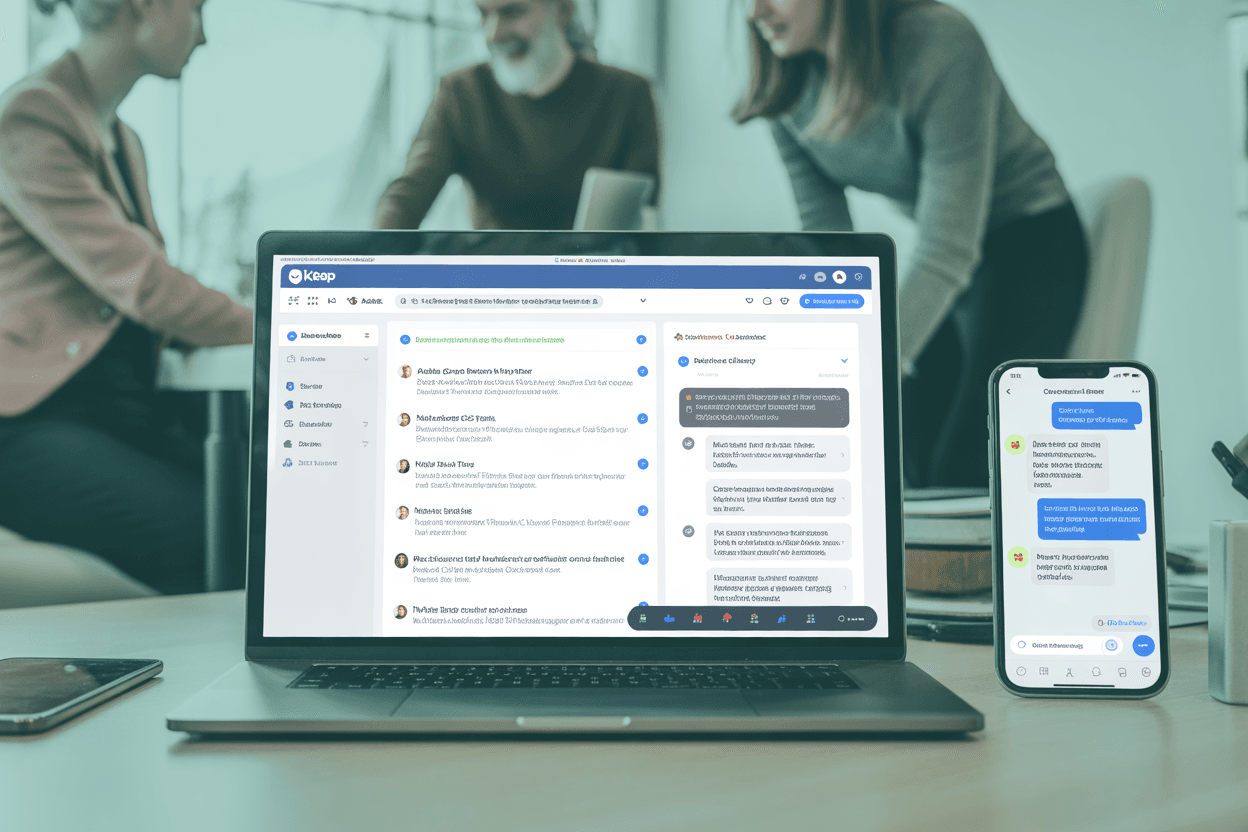
In today's fast-paced digital world, your customers expect to connect with you instantly. They don't want to fill out a contact form and wait a day for a reply, they want answers now.
This is where leveraging a powerful tool like Facebook Messenger for Business becomes a game-changer for your Kleap website. It is not just about adding another contact channel.
It’s really about showing up where your customers already are, in a place they trust, and turning your website from a flat, one-way brochure into a place where real conversations happen. Adding a live chat feature right on your pages can make a huge difference in how people feel about your site, helping you build trust and, let's be honest, get more sales.
The real magic of using the official Facebook Messenger plugin is that it never forgets. When someone starts a chat on your site, that conversation is saved right in their personal Messenger account. That means they can click away, open their Messenger app whenever, and just continue the chat from where you both were.
It makes for a super smooth, ongoing conversation that feels natural and easy on their end. It’s like giving every visitor a direct hotline to your business, creating an engagement level that you just can't get with clunky old email chains.
Honestly, if you're serious about providing excellent customer support, this tool is pure gold.
In this guide, we're going to walk you through exactly how you can get this powerful tool running on your Kleap site. We'll go over the simple plugin setup, how your team can juggle conversations from one shared inbox, and even how to use automation and AI to scale up your support.
Whether you're a one-person show or have a growing team, you'll find real, practical steps to make your customer communication so much better. The process is more straightforward than you might think, and the payoff in customer satisfaction and loyalty is well worth the effort.
Let's get your website talking.
What you'll learn
- What the Facebook Messenger Website Chat Delivers
- Step by Step Guide to Implement Facebook Messenger Chat on Your Kleap Site
- Managing Your Conversations Like a Pro For Teams
- Automating and Scaling with AI and Bots
- Essential Considerations Privacy Security and Measurement
What the Facebook Messenger Website Chat Delivers
The official Messenger Customer Chat Plugin provides a familiar and intuitive interface for your website visitors. It just pops up as a floating chat bubble, usually in the corner, so people can start a chat with your Facebook Page without having to leave your website. Having live chat right there gets rid of any hesitation and gets people talking.
And, as the docs from Chative point out, one of the best parts is that it signs users in through their Facebook account. So you know you're talking to a real person, not just some random, anonymous visitor.
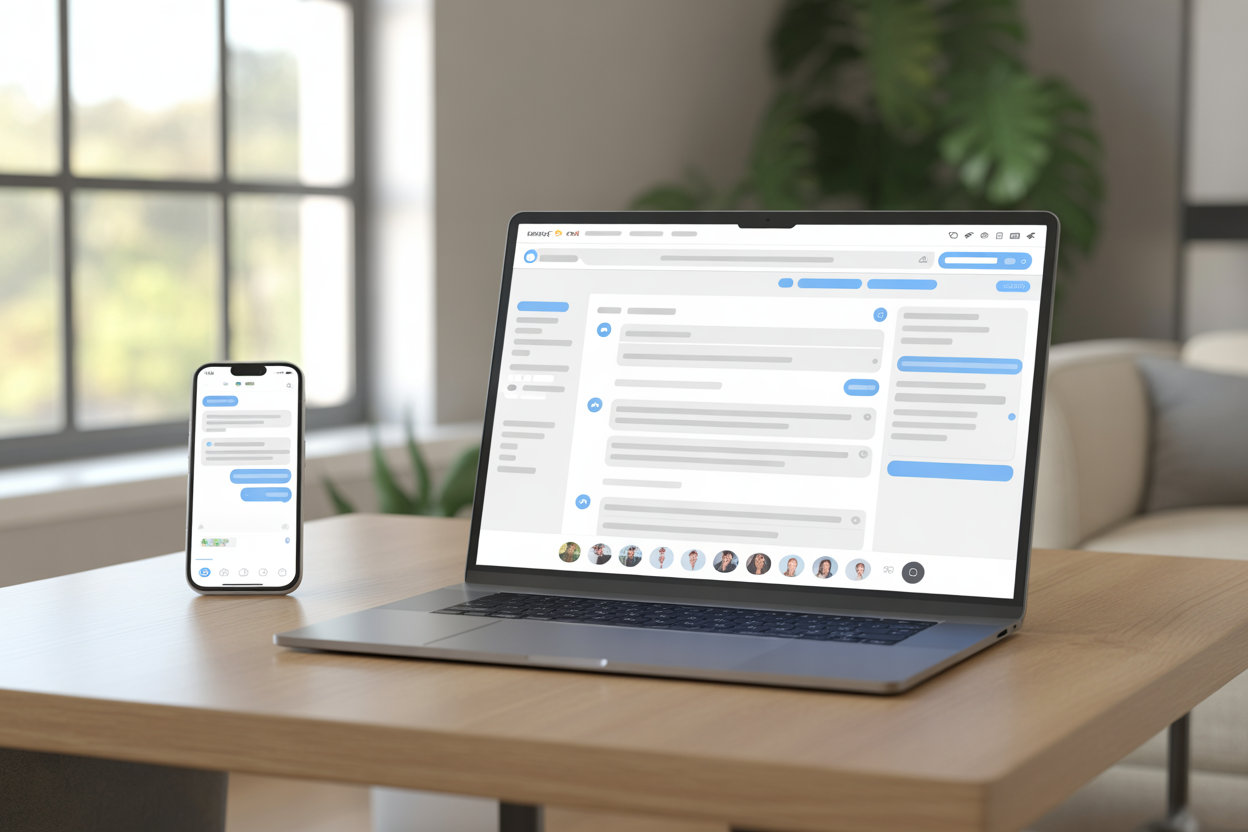
But here's what's really cool: Messenger keeps the conversation going, no matter what device they're on. Someone can start chatting on their computer through your website and then pick it right back up later on their phone in the Messenger app.
Because it's tied to their identity, you never lose the context of the conversation, which makes for way better customer support.
All the messages that come in get neatly sent to your Page Inbox or the Meta Business Suite Inbox. You've also got the option to link it to a different platform if you need fancier tools for your team, so you're always in control of how you talk to customers.
This whole setup is incredibly flexible, no matter how big or small your business is. A small shop could probably get by just fine managing chats right inside Facebook's own tools.
But for a growing team, you can connect a shared inbox platform to field all the messages, which lets you do things like assign chats, leave private notes, and just work together more smoothly. The whole thing is designed to keep all your messages in one place, so you can be sure no customer question ever slips through the cracks, no matter where your team is working from.
It's really the cornerstone of a modern, responsive way to talk to your customers.
Try it — build your site while you read
Describe what you want and get a live, publishable site in seconds. Free to start, no code.
Join 200,000+ makers building real websites with Kleap.
Step by Step Guide to Implement Facebook Messenger Chat on Your Kleap Site
Getting your Facebook Messenger chat up and running on your Kleap website is pretty straightforward, but you’ve got to get a few key steps right. By following this guide, you can ensure a smooth implementation that provides immediate value to your customers and your team.
We will break down everything from the initial requirements to the final testing phase.
Prerequisites You Cannot Skip
Before you even think about code snippets, you need two fundamental things in place. First and foremost, you must have a published Facebook Page for your business. A page that isn't published or is brand new just won't cut it.
Your Page is who your customers will be talking to, so make sure it looks complete and professional. On top of that, you have to make sure messaging is actually turned on for your Page. It sounds obvious, but you'd be surprised how often that setting gets missed.
These things are non-negotiable, even technical guides from places like Chative will tell you that. The second critical requirement is having Admin access to that Facebook Page.
The second critical requirement is having Admin access to that Facebook Page.
You will need this level of permission to generate the necessary code for the chat plugin and, more importantly, to grant permissions to any third-party management tools you decide to use.
Without Admin access, you will hit a roadblock when trying to connect your Page to a shared inbox or an automation platform. Think of it as needing the master keys to connect your Facebook presence with your website properly.
Setting Up and Embedding the Messenger Plugin
Once you've got the essentials out of the way, you can dive into the actual setup. Head over to your Facebook Page settings, and you'll find the Messenger Customer Chat Plugin option. This is your command center for tweaking how it looks and acts.
A really important step here is to add your website's domain to the whitelist. This is a security step that makes sure the plugin only shows up on your site and nowhere else. After you've dialed in the settings, Facebook will spit out a little snippet of JavaScript code for you.
You then just need to copy and paste that code snippet into your website's HTML. For anyone using Kleap, this couldn't be easier.
Just find the custom code section in your site settings, it's usually called a global header or footer section.
Dropping the code in there makes sure the Facebook Messenger plugin pops up on every single page of your site. This whole "set it and forget it" thing is a common practice you'll see in setup guides, like the ones from Chative.
The last step is probably the most important of all.
The final step is arguably the most important one. You must thoroughly test the integration. Open your live website on both a desktop computer and a mobile device to verify that the chat widget loads correctly.
Start a new conversation as a test user and make sure the facebook message messenger arrives in your Page Inbox or your chosen management tool.
This end-to-end test confirms that everything is connected and working as expected before your customers start using it.
Managing Your Conversations Like a Pro For Teams
Look, handling messages right in the Facebook Page Inbox might work when it's just you, but it gets messy fast with a team.
That's where an omnichannel inbox platform is a lifesaver. Hooking up your Facebook Page to a shared workspace lets your entire customer support team jump on messages from one clean dashboard. It’s a huge step up for teamwork and getting things done efficiently.
Getting your Page connected is designed to be a breeze.
In a tool like that, you'd just go to the "Channels" area, pick "Add Facebook Messenger," and sign in to your Facebook account. From there, you just have to give the platform the green light to access your Page's messages.
As guides from platforms like Chative explain, once you're connected, every new message from your site and your Facebook Page will flow right into that shared inbox.
This unlocks cool features like assigning chats to specific people and keeping an eye on how the team is doing.
It's important to get that this only changes things on your end. Your website visitors won't notice a difference; they'll still see that same familiar Messenger chat bubble. The big change is in how your team wrangles all those incoming conversations.
A unified inbox, like the one Gleap highlights, can pull in not just Facebook Messenger but also your email, Instagram, and WhatsApp.
Cutting down on all that app-switching and keeping communication in one place means you'll answer faster, your team will work better together, and your customers will be a whole lot happier.

Automating and Scaling with AI and Bots
Once you have a solid system for managing chats, the next level is bringing in automation to take care of the repetitive stuff and help you scale.
A Facebook Messenger bot can be a huge help here, it can instantly answer common questions, ask a few things to qualify leads, or smoothly pass tricky issues over to a real person. That frees up your team to focus on the problems that actually need a human touch. The technical side of building a bot involves making a Facebook App, linking it to your Page, and setting up webhooks that listen for new messages.
From there, you can actually launch your bot's logic using a platform built for it. For example, chatbot development guides from Yellow.ai walk you through a clear process for setting up the Page, App, and webhooks. This is what lets your bot process messages and fire back replies automatically, based on the rules and scripts you give it.
If the thought of coding a bot from the ground up makes you nervous, don't worry, no-code automation tools are a fantastic alternative. For instance, as integrators like Appy Pie Automate show, you could build a workflow where any new Facebook Messenger message immediately gets sent to an AI like Google Gemini for a first crack at an answer. If the AI gets stumped, it can automatically flag the conversation for a human to take over.
This hybrid approach gives you the best of both worlds: the speed of AI and the empathy of real human support.
Essential Considerations Privacy Security and Measurement
Any time you integrate a third-party tool, you really need to be on top of security, privacy, and tracking your results. These aren't just technical details, they're what build trust with your customers and make sure you're running your business the right way.
Let's take a look at what you need to be thinking about.
Keeping your chats secure and compliant starts with just understanding how the data is handled.
Keeping Conversations Secure and Compliant
Security starts with understanding how data is handled. Messenger encrypts messages as they're traveling back and forth, which is a great start.
But you're still on the hook for being upfront about how you handle data, especially if you're using other platforms to manage these conversations. Make sure you have a clear privacy policy, only collect the data you absolutely need, and stay compliant with rules like GDPR and CCPA.
Resources on building enterprise chatbots, like those from Yellow.ai, always stress these compliance steps.
On a more practical level, just stick to security best practices when you're setting things up. That domain whitelisting feature in the plugin settings is there for a good reason, use it.
When you're connecting an inbox platform, as Chative points out, be careful to only grant it the permissions it actually needs. Should you need to export Messenger data for analytics, use a secure connector. Look for tools that support encryption for data both in transit and at rest, as recommended by data integration services like Kleene.ai, to minimize any potential data exposure.
Measuring Your Success
Integrating a new communication channel is only half the battle; you also need to measure its impact. Tracking key performance indicators is essential for understanding what is working and where you need to improve.
Enterprise bot providers like Yellow.ai suggest keeping an eye on the usual chatbot metrics, things like how fast you reply, how often a chat gets successfully handed off to a human, how many messages you miss, and what your customer satisfaction scores look like.
These numbers give you a really clear picture of how well your bots and your human agents are doing. For even deeper insights, you could think about connecting your Facebook Page to a data warehouse.
This lets you do much more advanced analysis than you can get from the standard dashboards.
By using a specialized data integration tool, you can set up regular data syncs to pull in everything from chat volume and response time SLAs to how much users are engaging. As data platforms like Kleene.ai explain, this kind of in-depth analysis can show you exactly how your live chat strategy is affecting bigger business goals like sales and customer loyalty.
Troubleshooting Common Facebook Messenger Issues
Even if you do everything right, you might still hit a snag every now and then. Knowing how to fix the common stuff can save you a ton of time and headaches.
Let's go over a few of the usual suspects and how to sort them out.
One common issue is the chat widget not appearing on your website. The very first thing to check, as Chative's documentation suggests, is your domain whitelist in the Messenger plugin settings on your Facebook Page.
Another thing that could be wrong is that the script wasn't put in the right place in your Kleap site's global header or footer, so just give that a quick double-check and make sure to publish your changes.
Another headache you might run into is not getting messages in the inbox tool you're using. This is almost always a permissions problem. You might just need to reconnect your Page in your third-party platform's settings.
If you've been messing with Page roles or other admin settings recently, you may need to go through the authorization steps again to give the tool fresh access to your messages.
If you are using a bot and it suddenly stops responding, the problem usually lies with the webhook. According to bot development guides from sources like Yellow.ai, you should verify that your webhook subscription is still active for your Page.
You also need to ensure that your callback URL is online and responding correctly to Meta's verification requests and message events. A broken webhook will prevent your bot from receiving any new messages.
Bringing It All Together on Your Kleap Site
Let's be real: adding Facebook Messenger for Business to your Kleap website isn't just a small tech upgrade. It's a smart move that puts your brand exactly where your customers are, ready to have real chats at a moment's notice. By putting this powerful live chat feature in place, you're tearing down the old communication walls and making it easy for people to connect with you, which is how you build real, lasting relationships.
The fact that a conversation can hop from a laptop to a phone without missing a beat makes your customer support feel less like a transaction and more like a personal connection, and that's a huge edge in today's noisy market.
We have seen that you can start small with the basic Customer Chat Plugin managed directly through your Facebook Page. Then, as your business picks up steam, you can slide right into a more powerful setup, like a shared team inbox, to make teamwork smoother without your customers noticing a single change.
For those ready to really scale, bringing in AI and automation can take care of the simple questions, letting your team put their energy into the conversations that matter most. This layered approach means you can grab the right tools when the time is right for your business.
At the end of the day, this whole integration is about giving your customers a better experience on the awesome website you built with Kleap.
Every smooth chat, every quick answer, and every solved problem makes your brand that much stronger. It tells your customers you're there for them, you're responsive, and you actually care about their experience.
That's the kind of engagement that turns a first-time visitor into a loyal fan who tells all their friends about you.
Ready to completely change your customer communication and boost your online presence?
Kleap is the perfect place to build a website that not only looks amazing but also genuinely connects with the people you want to reach. Explore our features today to see how easy it is to integrate tools like Facebook Messenger and start building stronger customer relationships. Contact our team if you have any questions, we are here to help you succeed.