How to Use a barcode wifi QR Code to Share Your Network Instantly
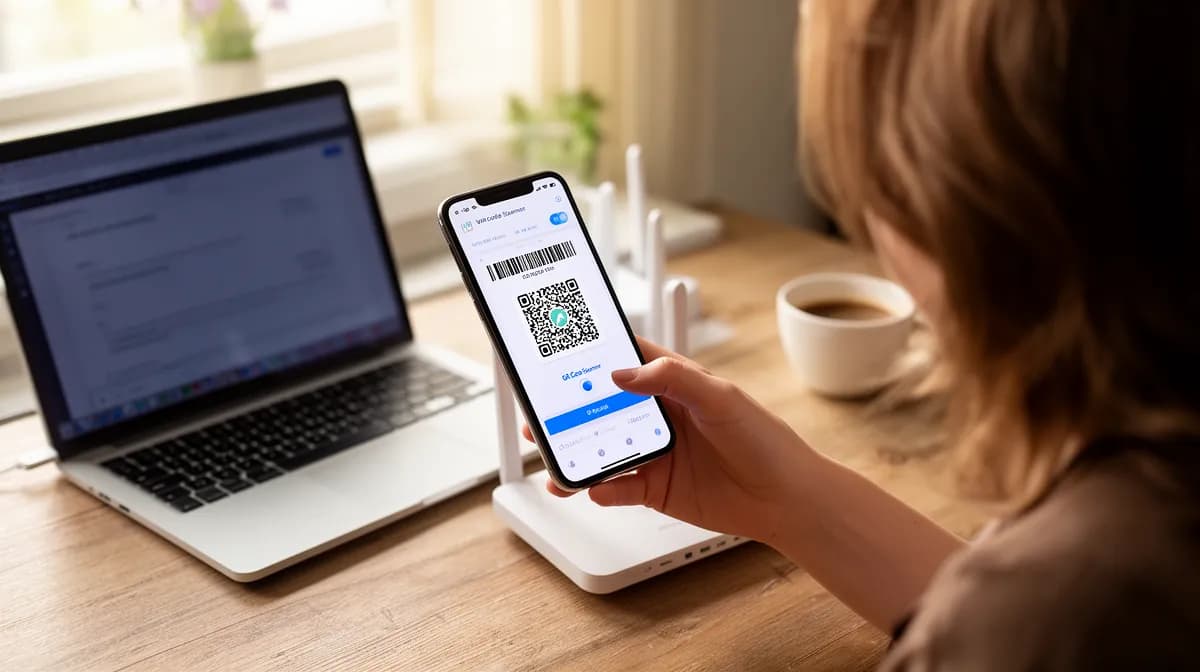
A barcode wifi QR code lets anyone join your network in seconds by scanning a single image, no password typing required.
- Generate a WiFi QR code in under 2 minutes using free online tools
- Works on any modern smartphone camera, no app download needed
- Eliminates password-sharing friction for guests, clients, and customers instantly
Most people still read their WiFi password out loud, letter by agonizing letter. There is a faster way, and it fits on a sticky note.
A barcode wifi QR code encodes your network name and password into a scannable image that connects any smartphone the moment a camera points at it. No typing, no misread characters, no "is that a capital I or a lowercase L" moments.
For entrepreneurs running a café, freelancers hosting client meetings, or enterprise teams onboarding dozens of devices across office floors, that friction represents a real daily cost. It rarely gets measured.
What you will walk away with from this guide is one practical skill: generating and deploying a WiFi QR code for free, in five steps, starting right now.
What you'll learn
- What Is a barcode wifi QR Code and Why Should You Care?
- Step 1, Gather Your WiFi Credentials Before You Generate Anything
- Step 2, Generate Your barcode wifi QR Code with a Free Tool
- What Other WiFi QR Code Tools Won't Tell You
- Step 3, Test, Print, and Deploy Your WiFi QR Code the Right Way
What Is a barcode wifi QR Code and Why Should You Care?
Here's the clarification most guides skip: there is no technology called "barcode wifi.What you're actually looking for is a WiFi QR code: a square 2D image that encodes your network name, password, and encryption type so any smartphone can scan and connect instantly. Tools like Kleap's built-in QR Code Generator let you create one in three steps, free, no account required.
What Is the Real Difference?
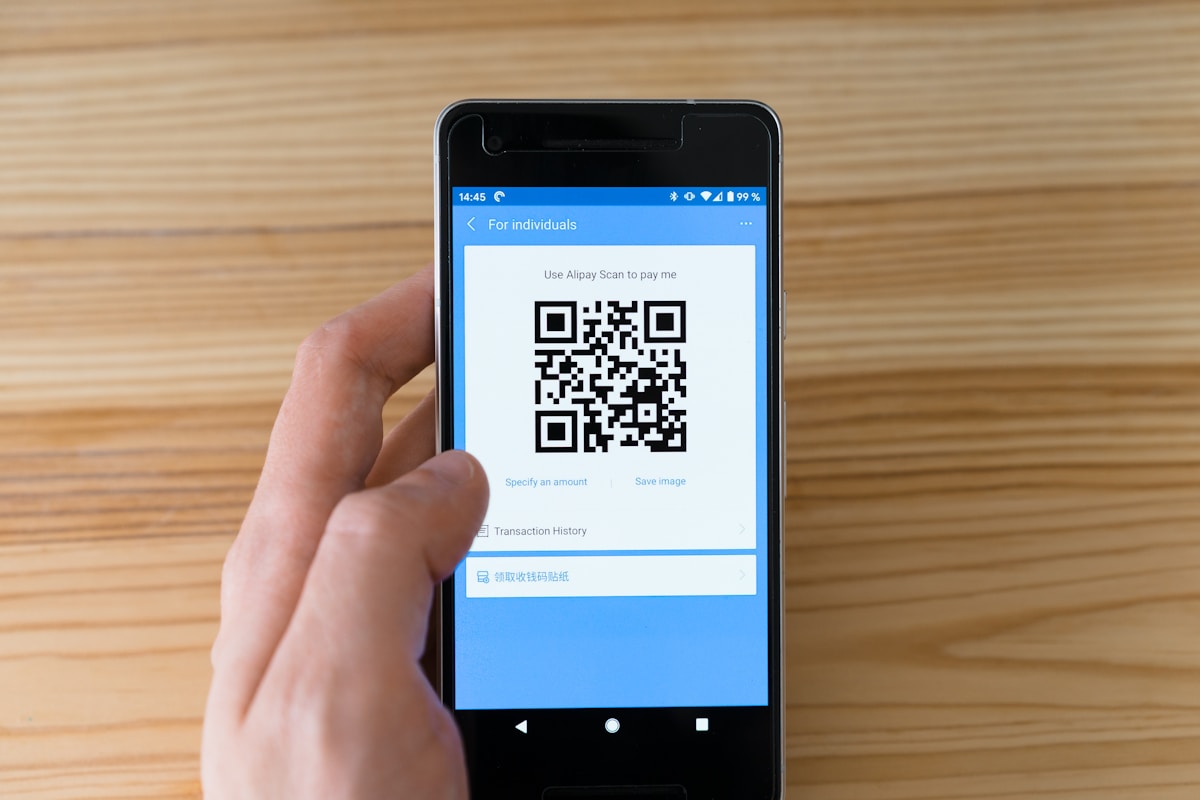
Traditional barcodes (UPC, EAN) are one-dimensional strips that store only short numeric strings. They physically cannot hold the structured data a WiFi credential requires, including SSID, password, and encryption type like WPA2.
QR codes are two-dimensional, storing far more data using the standard format WIFI:T:WPA;S:NetworkName;P:Password;;, which iOS and Android parse natively to trigger an instant connection prompt.
Why Sharing WiFi via QR Code Beats Typing Passwords Every Time
Three steps, under sixty seconds, one result: guests connect without you revealing your password verbally.
- Enter your WiFi credentials
Input your network name (SSID), password, and encryption type into a generator like Kleap's free QR Code tool. - Customize and download your code
Adjust colors or add a logo, then download. Print at minimum a readable size for reliable scannability. - Display and scan to connect
Guests point their camera at the code. Their device connects automatically, no typing, no errors.
Try it — build your site while you read
Describe what you want and get a live, publishable site in seconds. Free to start, no code.
Join 200,000+ makers building real websites with Kleap.
Step 1, Gather Your WiFi Credentials Before You Generate Anything
Most people skip this step entirely, open a generator, then stare blankly at a field labeled "SSID.Three failed attempts later. They have a QR code that connects to nothing. Before you use any barcode wifi tool or AI-powered website builder with built-in QR generation, spend two minutes collecting exactly three pieces of information: your network name, your password, and your encryption type.
Where to Find Your Network Name (SSID) and Password
- Check the router label first
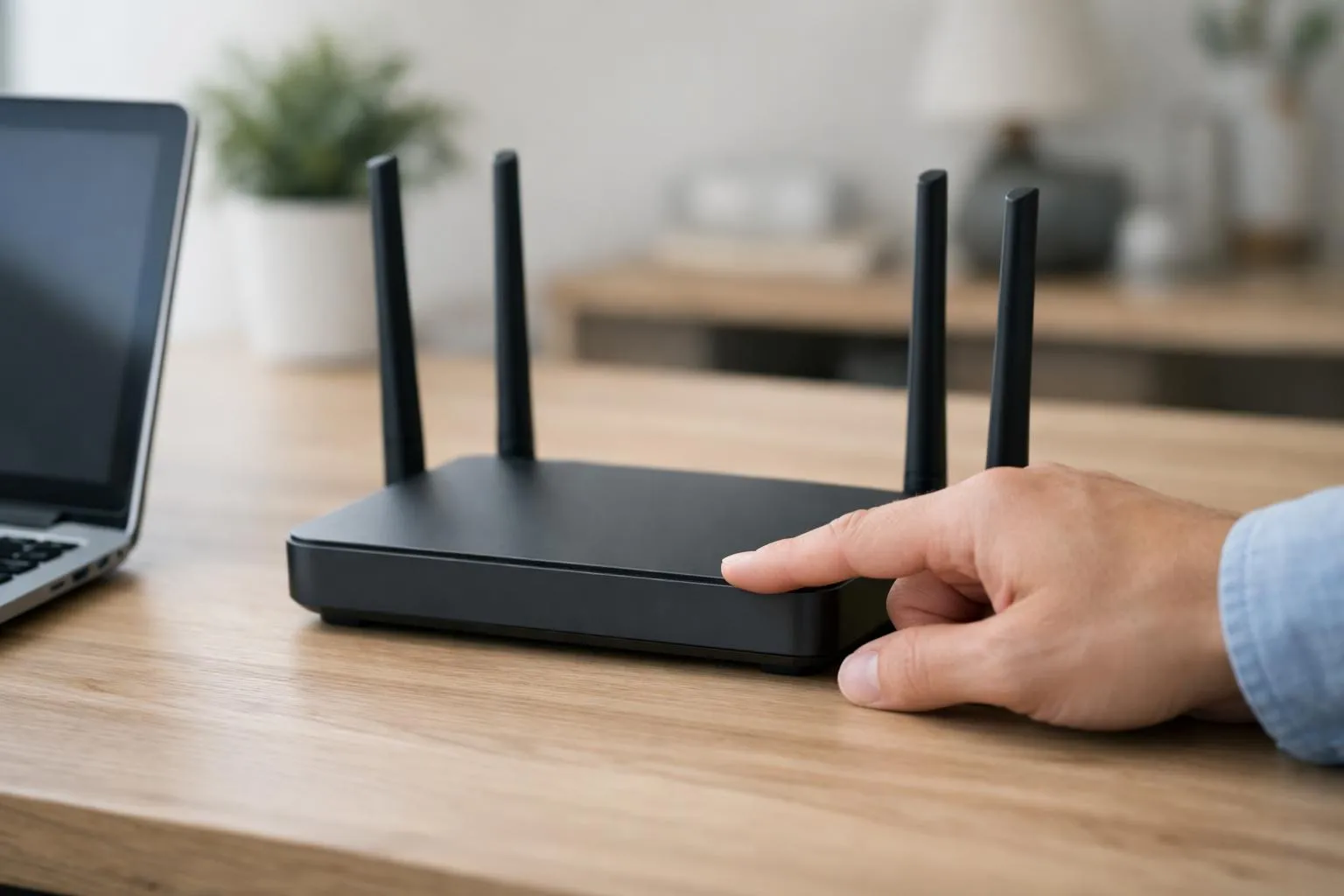
Flip your router over. Most manufacturers print the default SSID and password directly on a sticker on the bottom or back. This takes under 30 seconds and works for most home setups. - Access your router admin panel if the label is missing
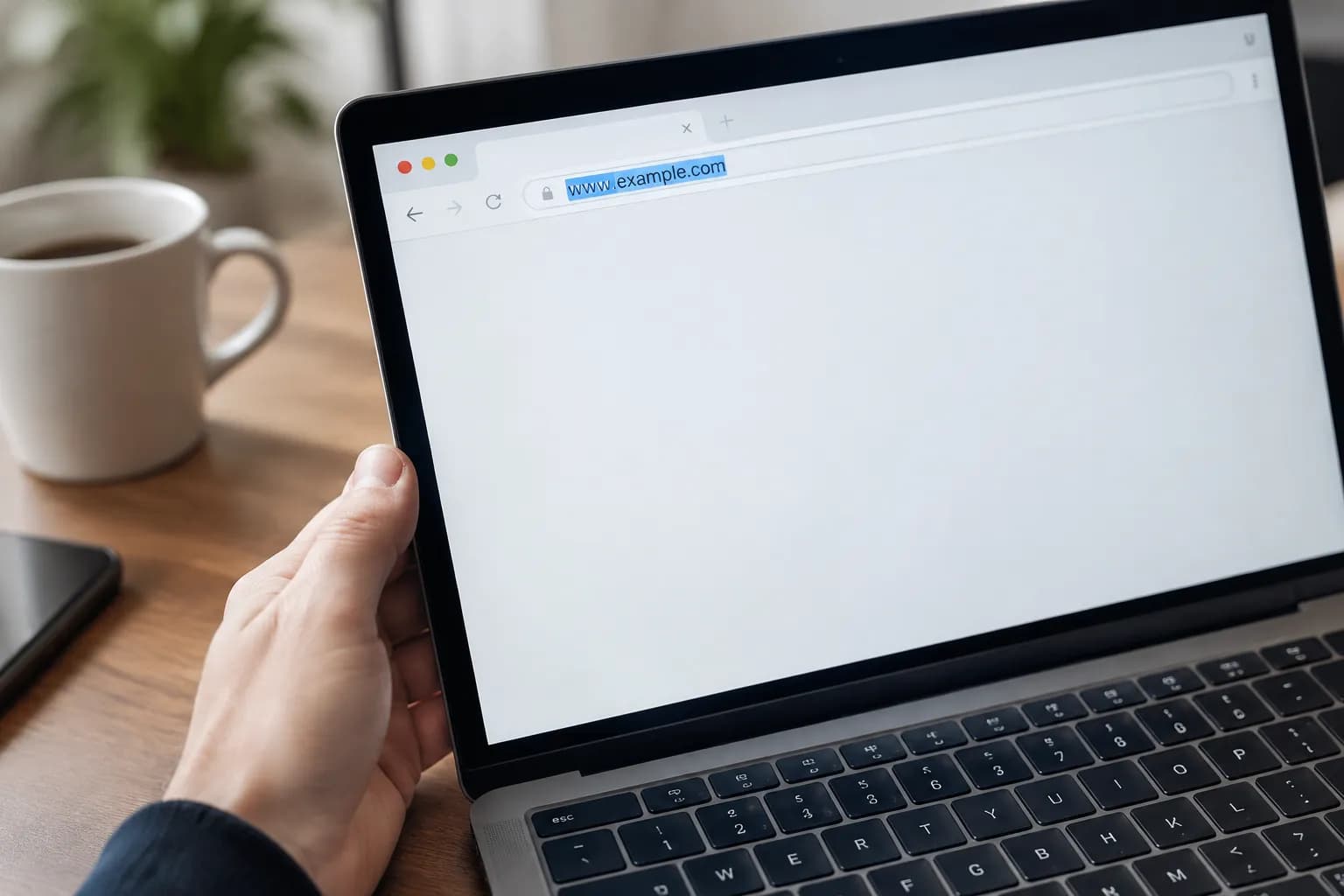
Type192.168.1.1into any browser on a connected device. Log in with your admin credentials (often "admin/admin" by default) and manage to the Wireless settings section to find your exact SSID and current password. - Copy the password character by character
Special characters like@,#, or!must be entered exactly as they appear. A single misplaced symbol produces a broken QR code that silently fails on every scan.
Which Encryption Type Should You Choose, WPA2, WPA3, or None?
WPA2 remains the most widely supported standard across home and business routers. WPA3 is newer and significantly more secure, use it if your router explicitly supports it, since older devices may not connect.
Set encryption to nopass only for genuinely open networks like hotel lobbies or public events. For any private network, leaving it unencrypted is a security risk, not a convenience.
Once you have all three values confirmed, you're ready to generate a functional WiFi QR code using a tool like Kleap's built-in generator, see how it compares in this AI website builder features comparison.
Step 2, Generate Your barcode wifi QR Code with a Free Tool
Three steps, under two minutes, zero coding. Kleap's free QR code generator lets you convert your WiFi credentials into a scannable code that guests can use instantly, no password typing, no awkward spelling out "capital-P-lowercase-a-ssw0rd." Navigate to Kleap's QR Code Generator tool, select the WiFi option, and you're already halfway there.
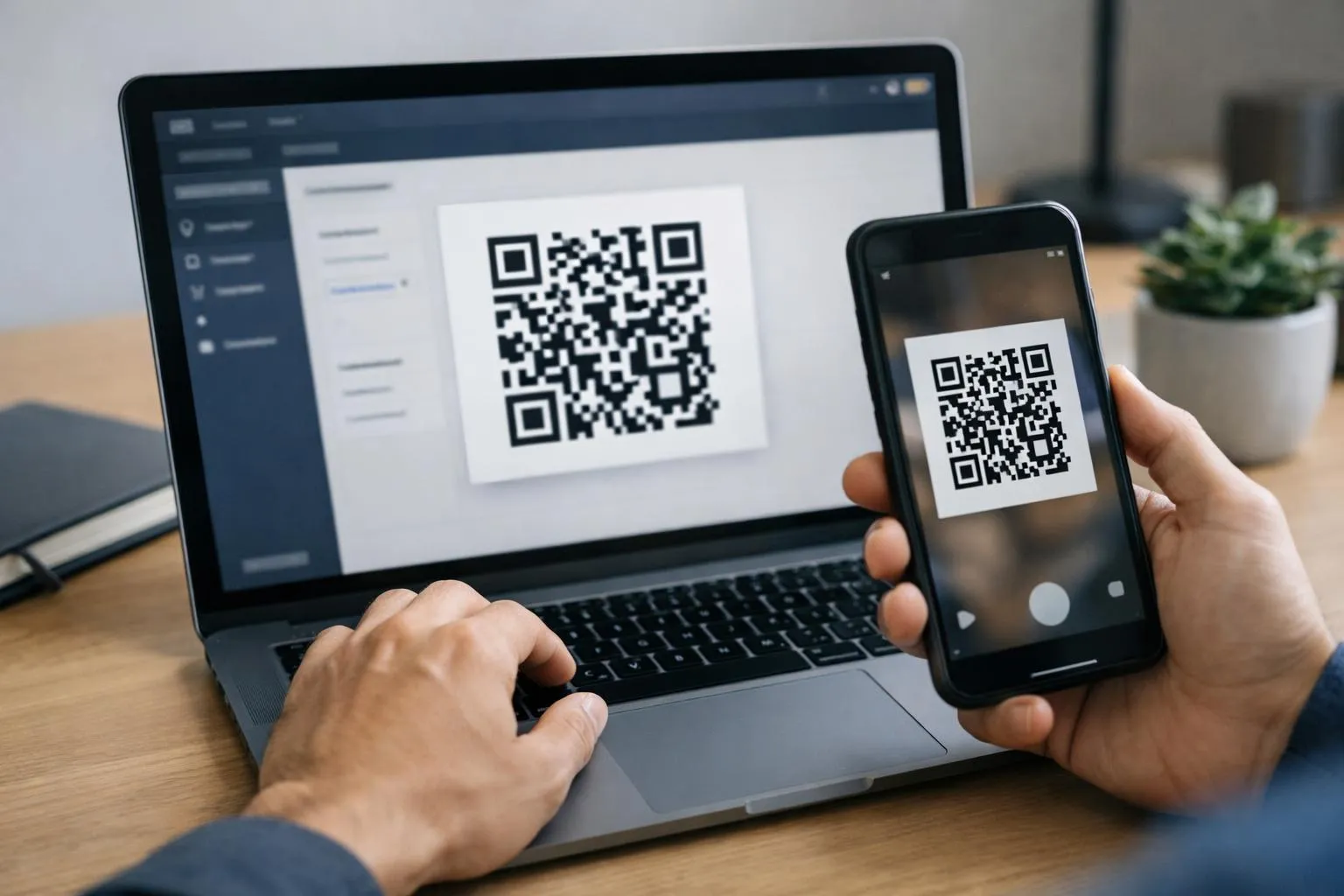
How to Create a WiFi QR Code Using Kleap in Under 2 Minutes
- Open Kleap's QR Code Generator and select WiFi mode
Head to Kleap's tool panel, part of its suite of 35 free utilities. Choose "WiFi" from the QR code type options. No account required for basic generation. - Enter your SSID, password, and encryption type
Type your network name (SSID) exactly as it appears in your router settings. Input your password, then select your encryption protocol, WPA2 is standard for most modern routers. The tool formats everything into the correctWIFI:T:WPA;S:NetworkName;P:Password;;string automatically. - Download your finished code as PNG or SVG
Hit generate. Your barcode wifi QR code appears instantly. Download as PNG for digital display or SVG for print, SVG scales without quality loss, making it ideal for signage or menus.
Customizing Your QR Code, Colors, Logo, and Size
This is where most free tools stop short. Kleap's AI lets you go further: adjust the code's foreground and background colors to match your brand palette, embed a logo in the center, and set precise dimensions.
For print use, aim for a minimum 2x2 cm output to guarantee reliable scannability across all devices.
Kleap tip: Use a contrasting color scheme, dark code on a light background, and test the final QR code with two different phones before printing. A logo overlay that covers a significant portion of the code area can cause scan failures on older devices.
For teams building full digital experiences around guest access, pairing this tool with a dedicated landing page amplifies the impact. Kleap's AI page creator lets you build that page in minutes, while entrepreneurs watching their budget will find the cheapest AI website builder comparison useful for choosing the right plan as their needs grow.
What Other WiFi QR Code Tools Won't Tell You
Most guides stop at "generate and print." What they skip is the part that actually matters: a printed WiFi QR code is permanent. Anyone who photographs it gains network access indefinitely, unless you change your password and regenerate the code.
That single oversight has exposed countless home and business networks to uninvited devices.
The Hidden Security Risks of Sharing Your WiFi QR Code Publicly
The core mistake is pointing your barcode wifi QR code directly at your main network. The moment that code leaves your hands, you lose control.
A better approach: always generate your QR code for a dedicated guest network, which isolates your primary devices from any unknown connections. Most routers support this natively, and the setup takes under five minutes.
Placement matters more than most people realize. A window-facing display means anyone on the sidewalk can photograph it.
Keep physical QR code signage at the front desk or inside a menu, not visible from the street. According to Wi-Fi Protected Access standards, even WPA2-secured networks become vulnerable when credentials are shared indiscriminately.
3 Insider Tricks to Make Your WiFi QR Code Smarter and Safer
- Rotate your password on a schedule
Change your guest network password monthly, then regenerate your QR code immediately. Old codes stop working the instant credentials change, cutting off anyone who saved a photo of your previous code. - Add a branded landing page before access
Kleap lets you link a QR code to a custom landing page first: guests see your brand, a welcome message, or a promotion before connecting. It adds engagement and a soft barrier against casual abuse. - Limit physical code size in semi-public spaces
A small code is scannable up close but not photographable from a distance, reducing opportunistic access in lobbies or waiting areas.
For teams building full digital experiences around guest access, the best AI website builder free options now integrate QR code generation directly into your site workflow, making these security layers effortless to deploy alongside your broader online presence.
Step 3, Test, Print, and Deploy Your WiFi QR Code the Right Way
Four steps, under ten minutes, and your barcode wifi QR code goes from digital file to guest-ready sign. Before you send anything to print, testing on real devices is non-negotiable, a broken QR code on a laminated café sign is a silent failure nobody mentions until dozens of guests have already struggled.
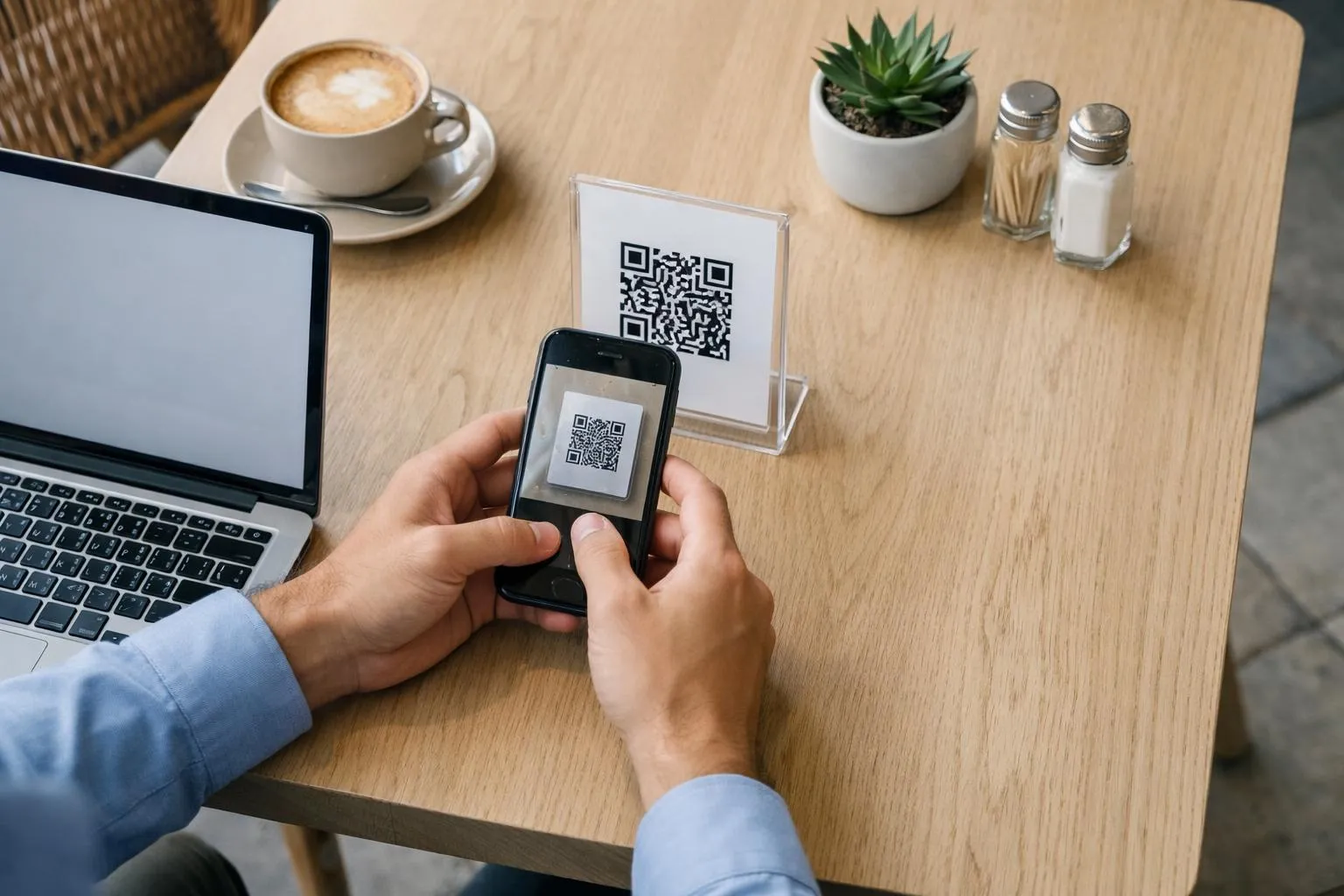
How to Scan and Verify Your WiFi QR Code Before Printing
- Test on two devices simultaneously
Scan with both an iOS 11+ device and an Android 9+ device using the native camera app, no third-party scanner needed. If either device fails to prompt a connection, regenerate the code and recheck your SSID or password for typos. - Verify the connection actually completes
Scanning is not enough. Confirm the device fully joins the network. A prompt appearing without connecting usually signals an encryption mismatch between your router settings and the QR code data. - Set the correct print size before exporting
Minimum 2x2 cm for table inserts; 5x5 cm or larger for wall displays. Smaller sizes may result in scan reliability dropping sharply at arm's length. Smaller than 2x2 cm and scan reliability drops sharply at arm's length.
Best Places to Display Your barcode wifi QR Code for Maximum Use
- Welcome packet inserts and check-in folders
- Table tents at every seat, critical for events in high-traffic venues like New York or Chicago conference spaces
- Reception desk signs and digital lobby screens
- Email footers for remote team onboarding
Laminate signs placed at eye level convert the fastest. A laminated A5 format at each table handles guest onboarding without a single staff interaction.
Frequently Asked Questions
Is a barcode wifi QR code the same as a regular barcode?
No, and the difference matters. A standard barcode stores a small string of text or a product ID in a linear format.
A WiFi QR code is a two-dimensional matrix that encodes a full network credential string. It includes your SSID, password, and encryption type, all in one scannable image.
Think of it this way: a barcode is a label, a WiFi QR code is a key.
Can I scan a WiFi QR code without downloading an app?
On most modern devices, yes. iPhones running iOS 11 or later and Android phones running Android 10 or later can scan WiFi QR codes directly through the native camera app, no third-party software needed.
Older devices may require a dedicated QR scanner. However, since the vast majority of smartphones in active use today meet that threshold, app-free scanning is the realistic default for most of your guests or customers.
What happens if I change my WiFi password after generating the QR code?
The old QR code stops working immediately. It encodes your password at the moment of creation, so any credential change renders it invalid.
You will need to generate a new QR code with the updated password and replace every printed or displayed version. This is the single most common frustration with static QR codes in hospitality and retail settings.
If your network credentials change frequently, consider using a dynamic QR solution that lets you update the destination without reprinting.
Is it safe to share a WiFi QR code publicly?
It depends on what you are sharing access to. For a dedicated guest network, sharing a QR code publicly is generally fine and widely practiced in cafés, hotels, and co-working spaces.
The risk is low when the guest network is properly isolated from your primary business infrastructure.
Sharing QR codes for your main internal network is a different story entirely. Anyone who scans it gains full network access, and that credential is then stored on their device indefinitely.
The practical rule: use a separate guest network for public QR codes, and treat your primary network credentials as confidential.
How do I create a WiFi QR code for free?
Several online generators let you build one in under a minute. You enter your network name (SSID), password, and encryption type, and the tool outputs a scannable image you can download and print.
At Kleap, the AI-powered builder takes this a step further. In addition to generating the QR code itself, you can embed it directly into a professionally designed landing page or digital menu. This can be branded to your business, with no coding required.
Free plans are available to get started: with Pro and Business tiers at $25 and $50 per month respectively if you need custom domains, advanced design controls, or higher-volume features. You can explore the various options available at Kleap.co.
Your barcode wifi QR Code Is Ready
The fastest guest experience upgrade you can make costs nothing and takes under five minutes.
Print your QR code, frame it, and place it where people actually look: next to the coffee machine, on the check-in desk, or taped inside a menu. That's the entire deployment strategy.
One thing worth keeping close: rotate your guest network password every few months and regenerate the code when you do. Security doesn't have to be complicated to be that delivers.
Ready to generate yours? Head to Kleap's free WiFi QR code generator, drop in your network name and password, and have a print-ready code in your hands before your next visitor arrives.
Kleap handles the technical layer so you stay focused on what matters, running your space, not explaining your WiFi password for the hundredth time.
One scan, instant connection, zero friction.