How to Generate a Secure WiFi QR Code for Guests
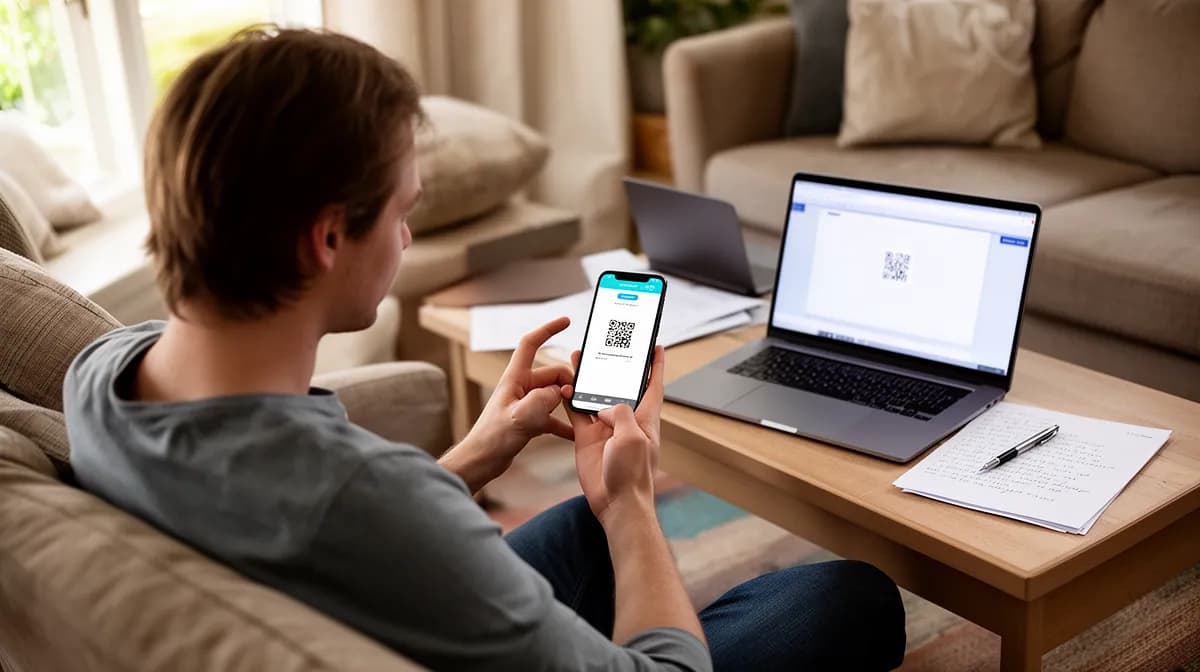
To como gerar qr code do wifi, use a free QR generator tool, the entire process takes under 2 minutes.
- Enter your WiFi network name (SSID), password, and encryption type (WPA2 is most common)
- Generate, download, and print your QR code, no app required for guests to scan
- Guests connect instantly by pointing their phone camera at the code, no typing needed
Someone hands you their phone, you reach for the WiFi password, and then comes the moment everyone dreads: reading out "X7k#mP2@qR9!" character by character while they squint at the screen.
WiFi QR codes eliminate that friction entirely, and searching for como gerar qr code do wifi is the first step toward never repeating that awkward exchange again.
For small business owners, freelancers running client meetings, or anyone hosting guests regularly, the gap between a smooth welcome experience and a frustrating one often comes down to this single, overlooked detail.
What follows is a practical walkthrough that gives you a working, secure WiFi QR code ready to share or print, and the one setting most people skip that leaves their network exposed.
What You Will Achieve and Why WiFi QR Codes Change Everything
This guide will show you how to easily generate a free QR code for your WiFi network, allowing guests to connect without typing a password. Three steps, under five minutes, zero cost.
You'll end up with a scannable image that works natively on any modern Android or iPhone camera, no third-party app required.
How a WiFi QR Code Works in Practice
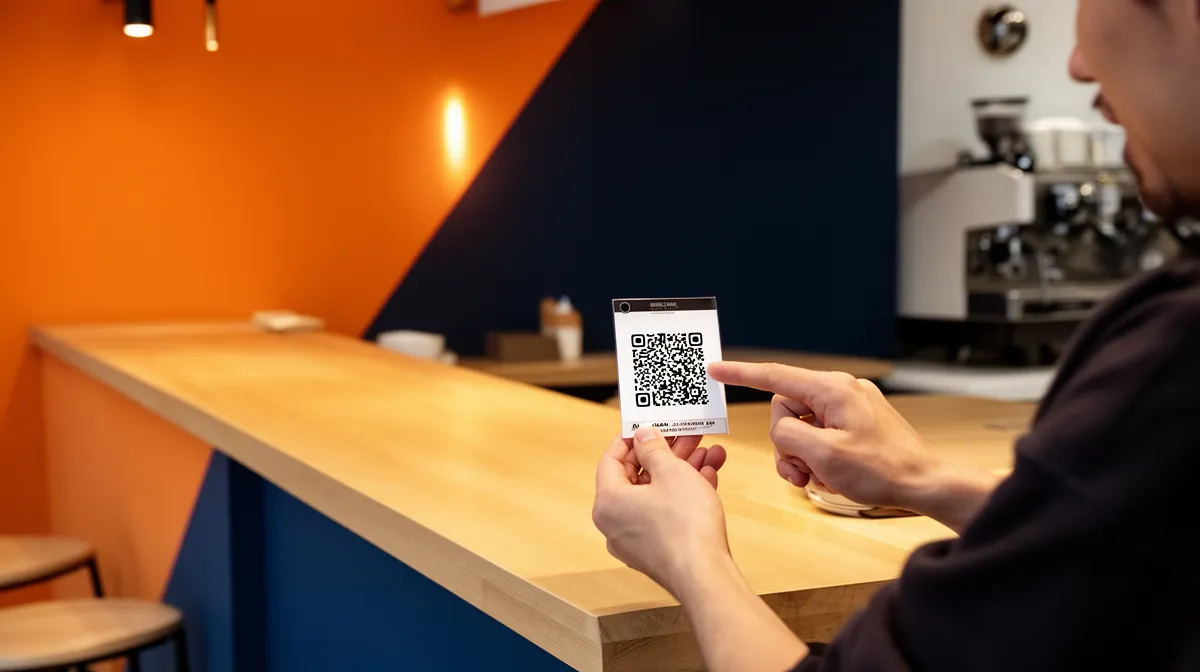
A WiFi QR code encodes three pieces of data into a single scannable image: your network name (SSID), your password, and your encryption type, typically WPA or WPA2. The encoded string follows the standard format WIFI:S:<SSID>;T:<WPA>;P:<password>;;, which modern camera apps decode automatically.
Scanning triggers an instant connection prompt, the user taps once, and they're online.
Who Needs a WiFi QR Code Most
- Display at your venue: Restaurants, hotels, and co-working spaces in cities like New York or Chicago eliminate the "what's the password?" interruption entirely.
- Secure your home network: Share access with guests without revealing your actual password verbally.
- Slim down remote offices: Print once, connect indefinitely, no IT support needed for every new visitor.
Try it — build your site while you read
Describe what you want and get a live, publishable site in seconds. Free to start, no code.
Join 200,000+ makers building real websites with Kleap.
Step 1, gather the 3 Pieces of Information You Need
Most failed WiFi QR codes come down to one mistake made before touching any tool: wrong input data. Before you learn how to generate a QR code for your WiFi network, collect three exact pieces of information.
Get these right, and the rest takes under two minutes. Get them wrong, and every scan will fail silently.
Where to Find Your SSID and Password
- Locate your SSID (network name) exactly as configured
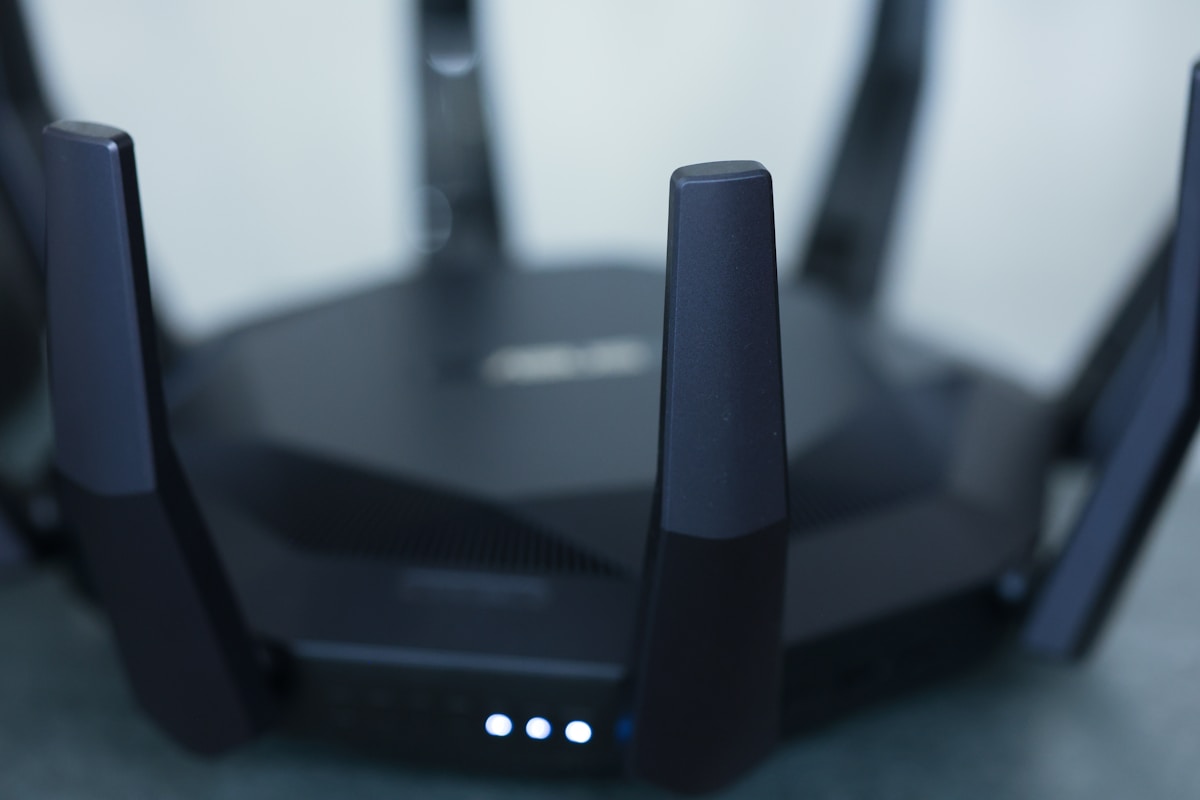
Check the label on the bottom or back of your router. Copy it character by character, including spaces, accents, and capitalization. "HomeNetwork" and "homenetwork" are treated as two completely different networks. Alternatively, find it in your router admin panel at 192.168.1.1, or check your device's saved network settings. - Retrieve your exact WiFi password
The same router label typically shows the default password. If you changed it, log into your admin panel at 192.168.1.1 and look under Wireless Settings. Your saved device networks also display stored passwords on both Android and iOS.
Choosing the Right Encryption Type
- Identify your encryption protocol before generating anything
WPA/WPA2 é o padrão para a maioria dos roteadores domésticos e empresariais. WEP is outdated and insecure, consider upgrading your router if it still uses it. Open networks (no encryption) apply only to public guest setups with strict content policies. This setting is found in your router admin panel under Security.
One detail worth knowing: the QR code encodes your SSID and password as a literal string in the format WIFI:S:<SSID>;T:<WPA>;P:<password>;;, so a single mistyped character breaks every scan. For context on related scanning formats, our guide on barcode wifi covers how different code standards interact.
You can also explore how contacts qr code generation follows the same precision-first logic.
Step 2, generate Your WiFi QR Code with a Free Online Tool
Two methods, five minutes total, zero typing required for your guests. Whether you're on Android or working from a laptop, you can generate a scannable WiFi QR code right now using either your phone's built-in tool or a free browser-based generator.
Both approaches produce a code that follows the universal string format WIFI:S:<SSID>;T:<Encryption>;P:<Password>;H:<Hidden>;;, which modern smartphone cameras decode automatically.
How to Use an Online WiFi QR Code Generator
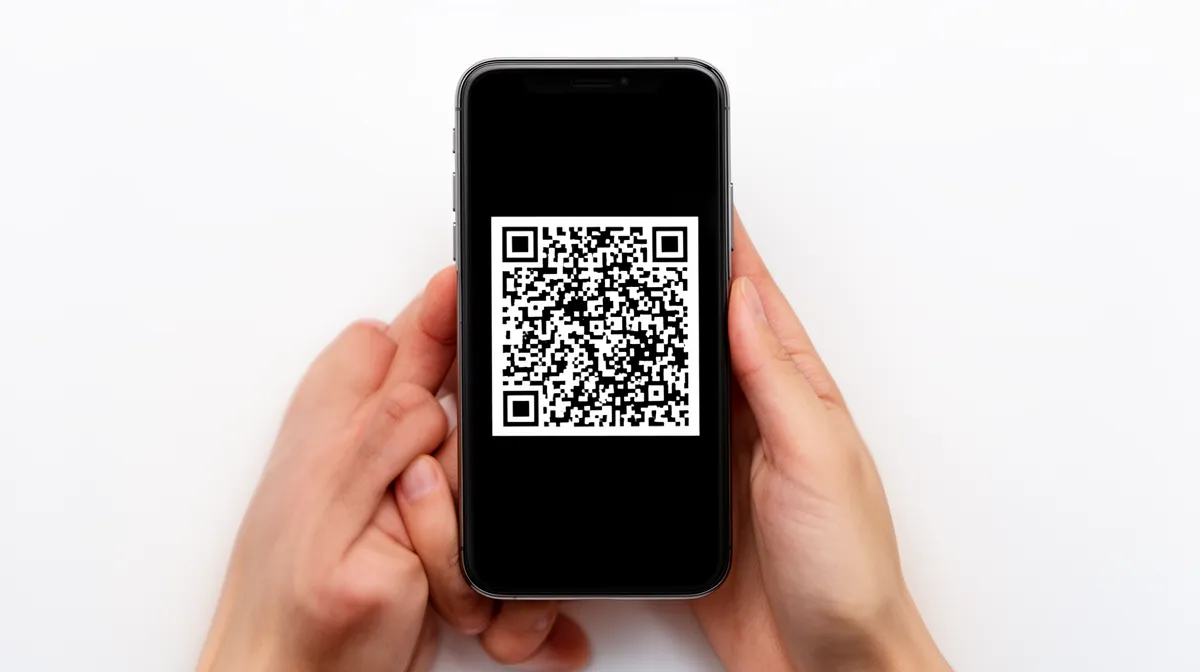
Online generators work for any network, connected or not, and are ideal when you want a printable, branded code for a café, office, or event space. Use a tool that explicitly supports the WiFi type, not a generic URL generator, since the underlying string format is different.
- Open a WiFi-capable generator
Manage to ME-QR's WiFi QR generator or a comparable free tool. Look specifically for a "WiFi Network" option in the QR type selector. Generic URL generators will not produce a code your phone can auto-connect from. - Enter your network credentials exactly
Type your SSID, password, and encryption type (WPA2 is the most common standard). Every character matters: a single misplaced space or lowercase letter breaks the connection entirely. - Download in PNG or SVG format
PNG works for digital screens and quick prints. SVG scales without quality loss for expert signage or menus. Avoid low-resolution exports if the code will be printed larger than a business card.
Generating a QR Code Directly from Your Android Phone
The native Android method is more secure because your password never leaves your device. No third-party server ever sees your credentials.
Go to Settings > Network & Internet > WiFi, tap your connected network, then select Share. The QR code appears instantly.
On Samsung devices, tap the gear icon beside the network name and select "QR Code."
Always scan the finished code with both an Android and an iPhone before printing or distributing it. A mismatch between your entered SSID and the actual router setting is the single most common failure point.
For businesses building a broader digital presence, pairing a WiFi QR code with well-structured blogs or a fast-loading landing page dramatically improves the guest experience. If you want to compare ai website builders for ease of use, Kleap's AI-powered platform lets you embed and publish assets like this in minutes.
Kleap tip: Create a dedicated guest network on your router, then generate a separate QR code for it. This keeps your primary network credentials private while giving visitors painless, one-scan access.
What WiFi QR Code Tools Won't Tell You (Industry Secrets)
Here's what most QR code tutorials skip entirely: when you paste your WiFi password into a free online generator, that password travels to a third-party server. Most generators don't encrypt this data in transit, and you have zero visibility into how long they store it.
The native Android and iOS methods avoid this risk completely, since the code generates locally on your device without touching an external server.
The Hidden Risks of Pasting Your Password Into Online Generators
The smarter move, especially for business networks, is using qifi.org, a pure JavaScript generator that runs entirely in your browser. Nothing gets sent anywhere.
Advanced users also build Apple Shortcuts workflows that produce clean, watermark-free codes on demand. Both approaches give you full control over your credentials and eliminate the branding clutter that free web tools embed into downloaded images.
Pro Tricks for Clean, Print-Ready QR Codes
- Download SVG, not PNG.
SVG scales infinitely without pixelation. A PNG that looks sharp on screen turns blurry at poster size. Always request SVG format when the generator offers it. - Set error correction to level H.
High error correction means the code remains scannable even when a logo or sticker covers up to 30% of it. Most generators default to level M, which gives you no margin. - Test on both Android and iPhone before printing.
iOS and Android parse the WiFi string differently in edge cases. Scan your code on both devices before committing to a print run. - Point the QR code at a guest network, not your main one.
A dedicated guest network isolates visitor traffic from your primary devices. If credentials ever leak, your core network stays protected.
These details separate a professional deployment from a rushed one. Whether you're building a café experience or a client portal, tools like Kleap's ai page creator let you embed a polished WiFi QR code directly into a branded landing page, so guests connect with one scan and zero friction.
Step 3, Test, Print, and Display Your WiFi QR Code
Generation is the easy part. What kills most deployments is skipping verification, a single misplaced character in your SSID or an incorrect encryption type produces a code that looks perfect but connects to nothing.
These three sub-steps close the loop in under five minutes.
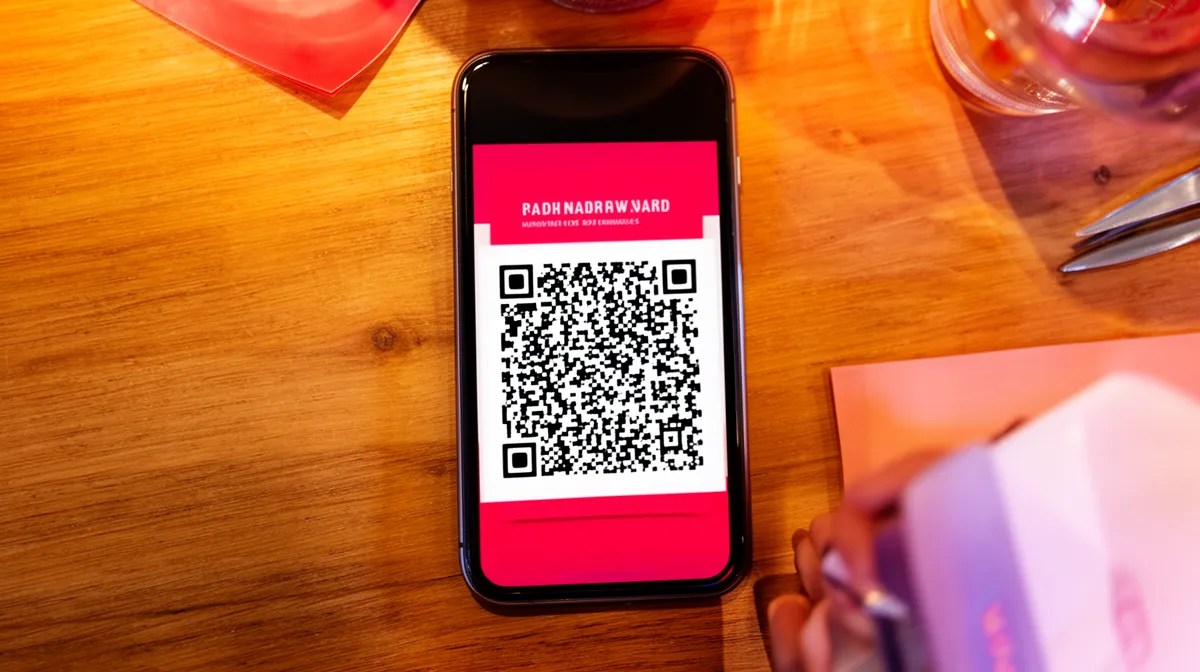
How to Verify Your QR Code Before Going Live
- Scan on two different operating systems
Open the native camera app on one Android device and one iPhone, align the QR code within the frame, and wait. A connection prompt should appear within two seconds. If it does not, re-check your SSID spelling (case-sensitive, spaces included), password accuracy, and whether you selected WPA2 rather than WPA or an open network. - Print at the correct resolution and size
Export your code at minimum 300 DPI and size it to at least 3 x 3 cm in the final printed output. Below that threshold, scanner modules on mid-range phones struggle to resolve the pattern reliably. - Position for maximum scan success
Mount the code at eye level, in well-lit areas, and away from reflective surfaces like glass or glossy menus. In high-traffic venues, restaurant tables, hotel lobbies, reception desks, laminating the printed card extends its lifespan significantly.
Go-to moves for Displaying Your Code in Physical Spaces
For digital environments, embedding the code into a landing page removes friction entirely. Kleap's AI website builder lets you drop your WiFi QR code directly into a digital menu or welcome page without writing a single line of code, the same workflow used when learning como gerar qr code do wifi for physical signage, now extended to any screen your guests encounter first.
Frequently Asked Questions
Can I generate a WiFi QR code for free?
Yes, completely free. Tools like Kleap let you create a WiFi QR code without spending a dollar, no account required for basic generation.
The free tier covers everything most people need: encode your network name, password, and security type, then download a print-ready image. Paid plans add branding, custom colors, and analytics, but the core functionality costs nothing.
Does a WiFi QR code expire or stop working?
A static WiFi QR code never expires on its own. It encodes your credentials directly into the image, so there's no server dependency, no subscription keeping it alive, and no expiry date baked in.
The only thing that "breaks" it is a change to your actual WiFi credentials. As long as your network name and password stay the same, a QR code you generate today will still work five years from now.
Is it safe to use online tools to create a WiFi QR code?
For reputable tools, yes. Established platforms process your WiFi details in the browser itself, meaning your password never travels to an external server.
The practical rule: avoid obscure, ad-heavy generators with no privacy policy. Stick to tools from known SaaS providers that are transparent about how data is handled.
I'd also recommend regenerating your QR code if you ever change your password, just to keep everything current.
How do I scan a WiFi QR code on iPhone?
Open your iPhone's native Camera app and point it at the QR code. No third-party app needed on iOS 11 or later.
A notification banner appears at the top of the screen asking if you want to join the network. Tap it, and you're connected instantly.
If nothing appears, check that QR code scanning is let under Settings, then Camera. Android works the same way through the default camera on most modern devices.
What happens if I change my WiFi password, do I need a new QR code?
Yes, you'll need to regenerate it. A WiFi QR code is a snapshot of your credentials at the moment it was created, so any password change renders the old code useless.
The good news: generating a new one takes under a minute with Kleap. Update your password on the router, head back to the generator, enter the new credentials, and download a fresh code.
If you print QR codes for guests or display them in a physical space, just swap out the image. Dynamic QR code options, available on higher-tier plans, let you update the destination without reprinting.
Your WiFi QR Code Is Three Minutes Away, Now Make It Work Harder
The simplest hospitality upgrade you can offer guests costs nothing and takes less time than brewing a pot of coffee.
Right now, pull up your router settings, grab your network name and password, and run them through a free generator like [[KEEPLINK_0]]ME-QR or QRStuff[[KEEPLINK_1]]. Print, laminate, display, done.
One thing worth keeping front of mind: always point guests to a dedicated guest network, not your primary connection. That single habit protects your business data and keeps the experience clean for everyone.
If you want to go further, embedding your WiFi QR code inside a digital menu, a welcome page, or a branded guest portal, Kleap's AI website builder lets you build that kind of professional digital presence without writing a line of code. Free to start, live in minutes.
When you're ready to learn como gerar qr code do wifi and put it to work inside a real digital experience, start building with Kleap for free and see how fast a polished guest-facing website actually comes together.
Your guests deserve a seamless welcome, and now you have exactly what it takes to deliver one.