How to Create Custom QR Codes That Actually Get Scanned (Without Coding)
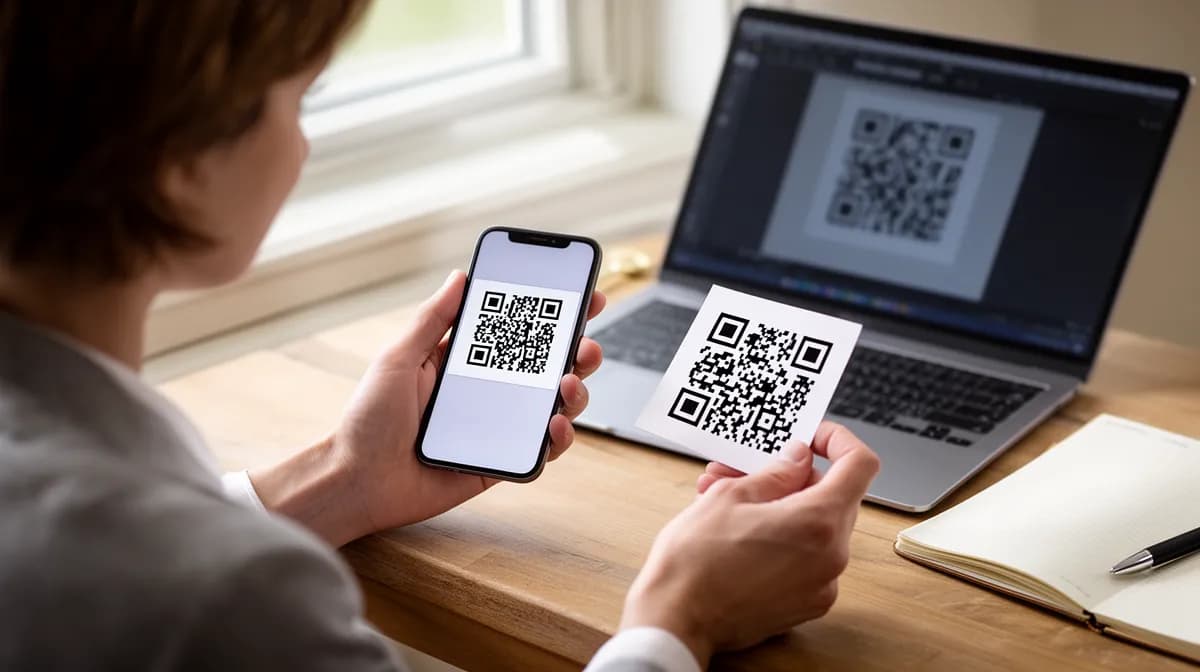
You can create custom QR codes in under 5 minutes, no coding required, using free or low-cost online generators.
- Choose a QR code generator that supports logo embedding, color customization, and dynamic links
- Always test your QR code on multiple devices before publishing or printing
- Dynamic QR codes let you update the destination URL without reprinting, a critical advantage for campaigns
Most QR codes get ignored. Not because the format is dead, quite the opposite, but because a plain black-and-white square signals nothing, promises nothing, and earns no tap.
The brands seeing real scan rates are the ones that create custom QR codes built around their visual identity: on-brand colors, an embedded logo, and a destination worth visiting.
For entrepreneurs, freelancers, and marketing teams, the ability to create custom QR codes without touching a line of code has become a genuine competitive edge, turning packaging, business cards, and event signage into trackable, interactive touchpoints.
What this guide delivers is a repeatable 6-step process that takes you from blank canvas to a scannable, branded QR code ready for print or digital use, in a single session.
What you'll learn
- Why Custom QR Codes Beat Generic Black-and-White Squares
- Step 1, Choose the Right QR Code Generator for Your Needs
- Step 2, Pick Your QR Code Content Type and Enter Your Data
- Step 3, Design Your QR Code with Colors, Logo, and Custom Style
- What Most QR Code Guides Won't Tell You About Deployment
Why Custom QR Codes Beat Generic Black-and-White Squares
Generic QR codes get ignored. Custom-branded ones get scanned.
According to QRCode Monkey, businesses that create custom QR codes with brand colors and logos report higher scan rates compared to standard black-and-white codes, because recognition drives trust, and trust drives action. That gap isn't cosmetic, it's the difference between a marketing asset and visual noise.
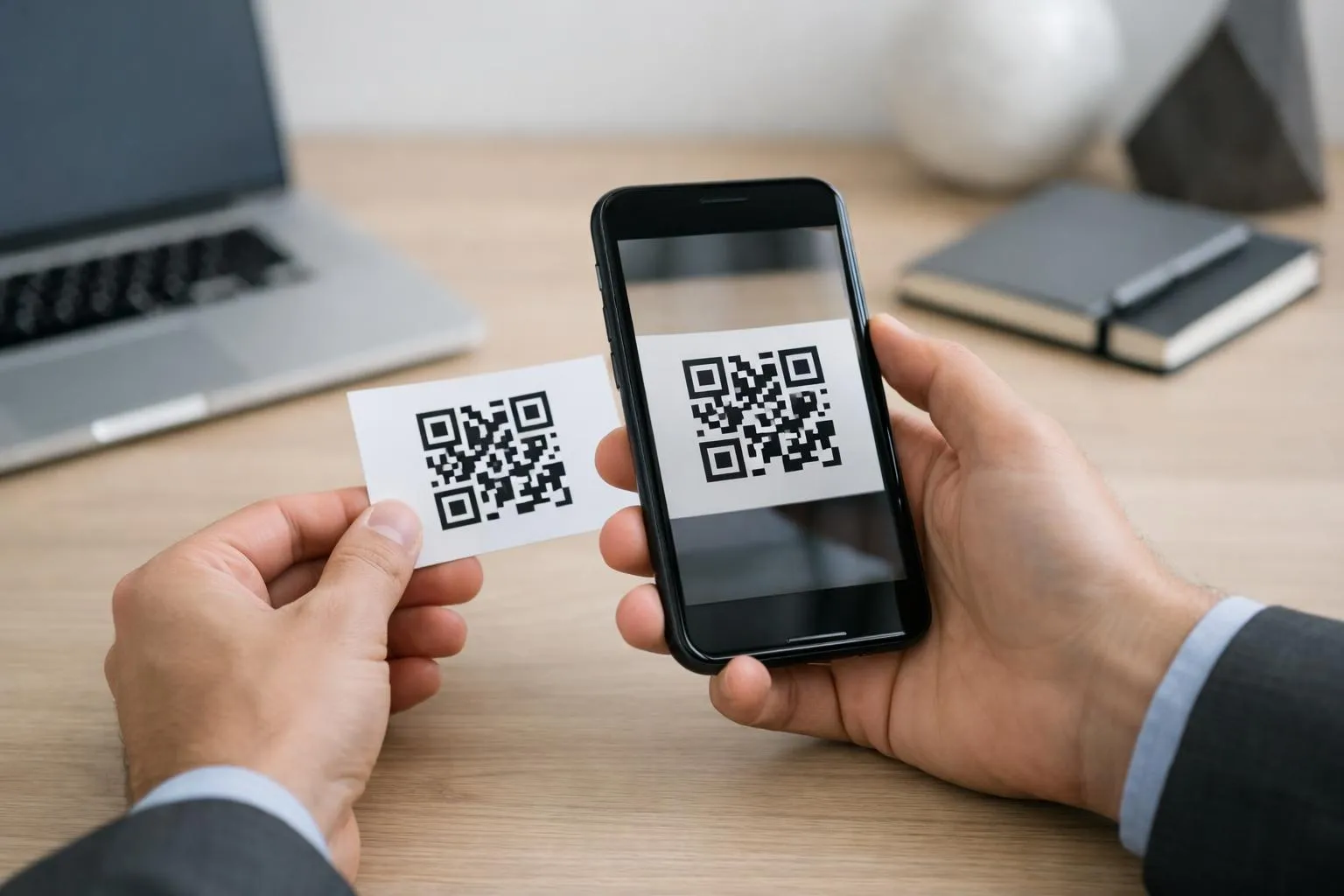
What makes a QR code truly 'custom'?
Customization goes well beyond swapping black for blue. A truly custom QR code combines brand colors, an embedded logo at the center, and shaped corner markers that align with your visual identity.
It also means choosing the right code type: static QR codes lock in a fixed URL permanently, while dynamic QR codes let you update the destination without reprinting, critical for campaigns that evolve. Kleap's generator supports URLs, WiFi credentials, vCards, and email drafts, covering every core business use case.
The real-world impact of branded QR codes on scan rates
Consider a Chicago bakery printing table cards, or a Miami e-commerce startup shipping product inserts. Both need codes that customers actually scan.
With over 90% of smartphone users able to scan without additional apps, the barrier is low, but only branded codes consistently earn that tap. Kleap lets you create custom QR codes free, with PNG, SVG, and PDF downloads ready in seconds, and premium plans starting at $25/month tap into analytics and dynamic editing.
Try it — build your site while you read
Describe what you want and get a live, publishable site in seconds. Free to start, no code.
Join 200,000+ makers building real websites with Kleap.
Step 1, Choose the Right QR Code Generator for Your Needs
Not all QR code generators are created equal. The right tool depends on three variables: what you're linking to, how often you'll update it, and whether you need branded visuals.
Nail these upfront and you'll avoid rebuilding codes from scratch two weeks later when your campaign goes live.

What's the difference?
Static codes lock in a destination permanently, change the URL and you need a new code. Dynamic codes let you swap the destination anytime, track scan counts, and analyze viewer behavior without reprinting anything.
For one-off uses like a vCard or a WiFi network, static works fine. For ongoing campaigns, dynamic is the only sensible choice.
Our guide on personalise qr code breaks down when each type makes sense.
Most standalone free generators look generous until you try to add your logo or download an SVG. Customization, colors, logo embedding, vector formats, gets locked behind paywalls almost universally.
That's the hidden friction nobody mentions upfront.
How Kleap's built-in QR code generator fits into your workflow
Kleap's free QR Code Generator lets you create custom QR codes for URLs, WiFi networks, vCards, and emails with instant download in PNG, SVG, or PDF, no sign-up required. Critically, it's embedded directly inside the AI website builder.
Build your landing page, generate the matching QR code, and deploy both in the same session. No tab-switching, no copy-pasting URLs between tools.
According to how to create a qr code, this integrated approach cuts setup time dramatically for entrepreneurs running lean.
- Identify your QR type: URL, WiFi, vCard, or email, pick the format matching your use case before opening any tool.
- Check format outputs: Confirm PNG, SVG, and PDF are available. Vector formats prevent blurry prints at any size.
- Match the tool to your volume: One-off code? Free static tier works. Ongoing campaign? Upgrade to dynamic codes via Kleap's Pro plan at $25/month, which removes the 9% transaction fee and unlocks analytics.
Step 2, Pick Your QR Code Content Type and Enter Your Data
Most people skip straight to design and wonder why their QR code underperforms. The real tap into point is earlier: choosing the right content type and entering clean, structured data.
Get this wrong and no amount of logo customization saves you. Four types cover the vast majority of use cases when you create custom qr codes, and each one demands a different input approach.
URL, WiFi, vCard, or plain text, which type do you need?
- Select URL for websites, menus, or landing pages
This is the most common type. Paste your destination link directly. If you're using a 100 free qr code generator like Kleap, URL codes are generated instantly with no sign-up required. - Choose WiFi for instant guest network access
Enter your network name (SSID) and password. Customers at cafes, hotels, or coworking spaces scan once and connect immediately, no awkward password-sharing required. - Use vCard for networking and digital business cards
Input your name, phone, email, and company. The code encodes all contact details so recipients save them in one tap.
How to structure your destination link for best results
Raw URLs create dense, error-prone QR patterns. Use a shortened or tracked link instead, it reduces visual complexity and unlocks analytics on scan counts and location data.
Better still, choose a dynamic QR code: it lets you update the destination URL later without reprinting a single flyer. According to research, many marketers rank logo integration as the top customization priority, but clean destination data is what actually determines scan-to-conversion rates.
Explore your options with our guide to free qr kode tools before committing to a format.
Kleap tip: After entering your URL in Kleap's QR Code Generator, immediately test the code with two different smartphone cameras before downloading. A broken link discovered post-print costs far more than 30 seconds of verification now.
Step 3, Design Your QR Code with Colors, Logo, and Custom Style
This is where most people quietly sabotage their own QR codes. Four design decisions, five minutes, one non-negotiable rule: contrast first, aesthetics second.
Kleap's free QR Code Generator lets you create custom qr codes with brand colors, embedded logos, and custom dot shapes, no design background required. Get these settings wrong, though, and your beautifully branded code simply won't scan.
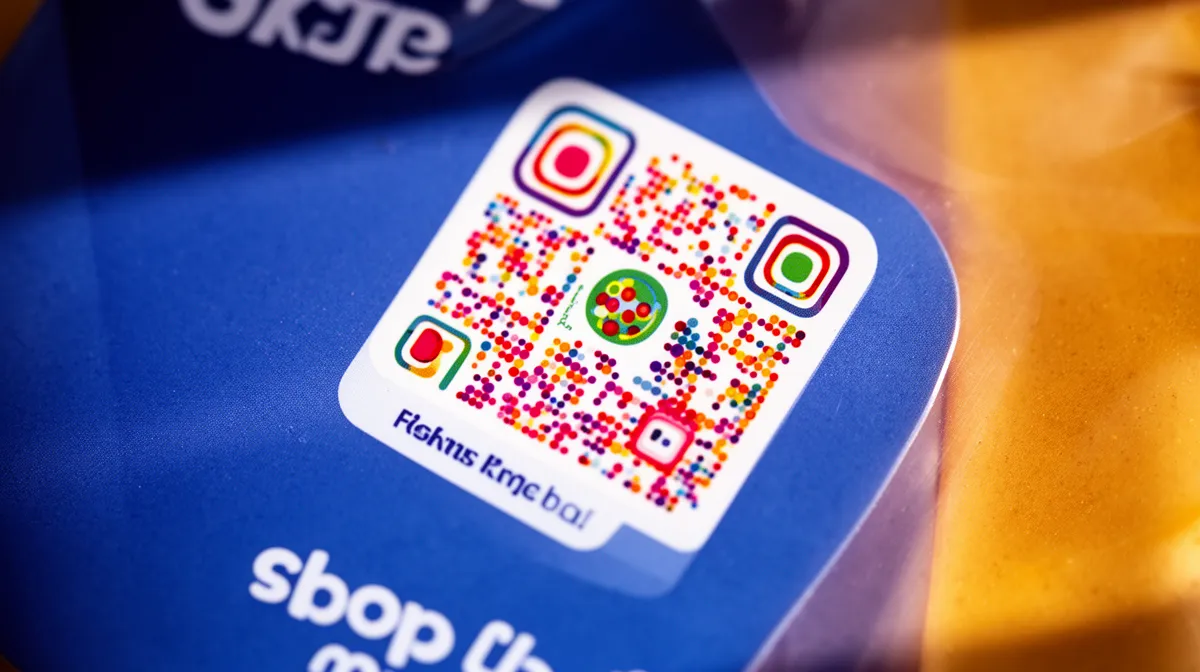
Applying brand colors without breaking scannability
Scanners read contrast, not color. Your foreground (the dark modules) must stay significantly darker than your background.
Light blue on white, yellow on cream, or any light-on-light pairing will cause scan failures even on premium devices. A practical rule: if you squint at your code and the pattern starts to blur, the contrast is too low.
Dark navy, forest green, or deep burgundy on white all work reliably while still carrying brand identity.
Embedding a logo in the center, rules every designer should follow
QR codes include built-in error correction, which is what makes logo embedding possible at all. However, that tolerance has a hard ceiling: your logo must cover no more than 30% of the total code surface.
Exceed that threshold and error correction can no longer compensate, killing scan reliability instantly. Keep the logo centered, add a small white padding ring around it, and avoid placing any design element over the three corner "eyes", those squares are how every scanner finds orientation.
- Set foreground darker than background
Never invert this. Dark modules on a light field is the baseline. Test with your phone before committing to any color combination. - Upload your logo and constrain it to 30% coverage
Most generators show a live preview. If the pattern looks crowded or modules disappear under the logo, scale it down immediately. - Choose dot and eye shapes that match your brand aesthetic
Rounded dots feel approachable, square dots feel technical, and circular dots feel modern. Eye shape options (square, rounded, extra-rounded) should stay consistent with your dot choice. - Add a call-to-action label below the code
"Scan to view our menu" or "Connect to WiFi" removes hesitation. Codes without labels get ignored roughly as often as they get scanned. - Test with multiple devices before finalizing
Scan with at least two different smartphones. If either fails, revisit contrast or reduce logo size. For deeper guidance on the full creation process, see our criar um qrcode walkthrough.
Every design change resets the test requirement. One color tweak, one logo resize, scan it again.
This single habit separates codes that work in the field from codes that look great in a mockup and fail on a restaurant table.
What Most QR Code Guides Won't Tell You About Deployment
Your QR code looks perfect on screen. Then you print it on a glossy brochure, stick it near the floor of your trade show booth, and watch exactly zero people scan it.
Design is the easy part. Deployment is where most campaigns quietly die, and the tutorials never cover it.
The silent failure modes that kill scan rates in the real world
Four deployment mistakes account for the vast majority of real-world scan failures. Knowing them before you publish saves a reprint bill and a wasted campaign.
- Enforce the 2 cm × 2 cm minimum print size
Anything smaller and smartphone cameras struggle to resolve the pattern, especially in low light. At 300 DPI minimum, export as PNG or SVG, never JPEG. Compression artifacts blur the edges of QR modules, and a blurred edge is a failed scan. - Protect the quiet zone around your code
The white border surrounding a QR code, called the quiet zone, must be at least 4 modules wide on every side. Crop it, bleed a design element into it, or print it flush against another graphic and your scan success rate drops sharply. Scanners need that breathing room to locate the code boundaries. - Avoid reflective, curved, or laminated surfaces
Glossy laminate, curved packaging, and metallic finishes scatter light and confuse camera autofocus. Matte substrates and flat surfaces consistently outperform premium-looking finishes for actual scan reliability. - Place at eye level, not at ankle height
A plain, unbranded code mounted at chest height on a wall will outperform a beautifully designed code placed on the floor. Placement context beats design every single time.
Dynamic vs. static, the decision most people get wrong
Static QR codes never expire, but if the destination URL changes, you must reprint everything. Dynamic codes let you update the destination without reprinting, and they add scan analytics.
The catch: some platforms deactivate "free forever" dynamic codes once a trial period ends. With Kleap's built-in QR Code Generator, dynamic code features are tied to transparent paid plans starting at $25/month, so there are no surprise deactivations after a campaign launches.
Step 4 to Step 6, Download, Test, and Launch Your Custom QR Code
Three steps, roughly five minutes, and your QR code goes from design canvas to live marketing asset. This final phase is where most people rush, and where costly mistakes happen.
Choose the wrong file format, skip the scan test, and you'll print 500 flyers with a code that fails on half of Android devices. Here's how to get it right the first time.
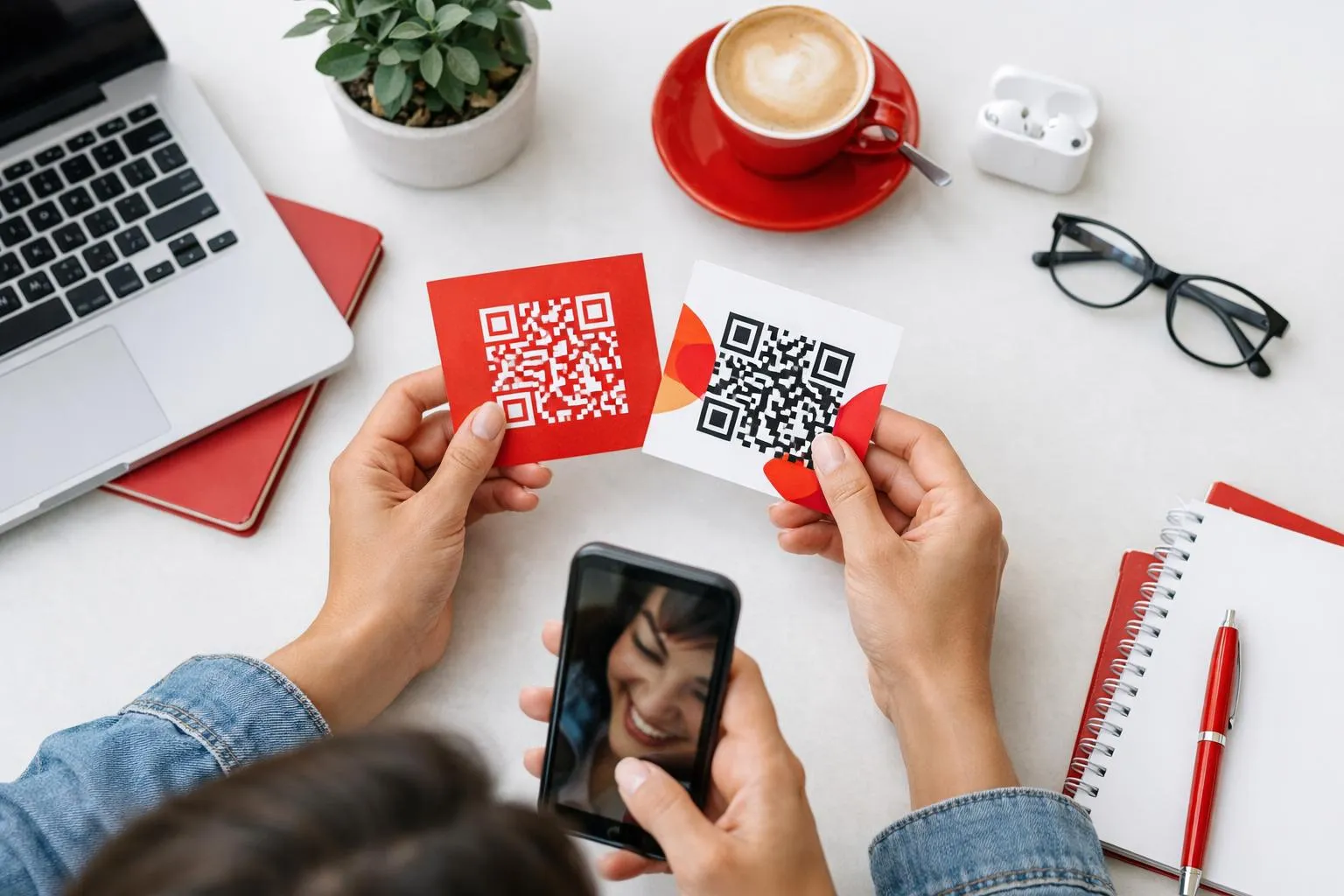
Step 4, Download in the Right Format for Print and Digital
- Export SVG or PDF for any print material
Vector formats scale to any size without pixelation, critical for product labels, storefront signage, and flyers. PNG compresses at large sizes and blurs. If your file is going to a printer, SVG or PDF is non-negotiable. - Use PNG for digital placements
Social media posts, email signatures, and presentation slides all handle PNG cleanly. Keep dimensions at 1000×1000 pixels minimum to avoid softness on retina displays.
Steps 5 and 6, Test Across Devices, Then Publish and Track Performance
- Scan with at least three different devices before publishing
Test on iOS, Android, and one older smartphone. Camera apps, screen brightness, and scanning angles vary enough that a code working on your iPhone may fail on a two-year-old Samsung. Fix problems before ink hits paper. - Embed UTM parameters in your destination URL
Add UTM source and medium tags before generating your final code. This lets Google Analytics separate scan-driven traffic from organic visits, giving you real performance data, not guesswork. - Monitor scan volume, device type, and location
Dynamic QR codes let you update destination URLs without reprinting, and they surface analytics like scan counts and geographic data. Static codes never expire, but offer no tracking.
Kleap tip: When you create custom QR codes through Kleap's built-in generator, the code links directly to your AI-built website or landing page, live in under two minutes. Upgrade to the Pro plan at $25/month to unlock dynamic codes, logo embedding, and scan analytics, all inside the same platform where your site already lives.
Frequently Asked Questions
How do I create a custom QR code with my logo for free?
Most QR code generators let you upload a logo directly into the design editor, then adjust colors and corner styles to match your brand. The logo sits in the center module, which is intentionally left as error-correction space.
Keep the logo under roughly 30% of the total QR surface, or scanners start struggling. A transparent PNG with no white border blends cleanest.
What is the difference between a static and a dynamic QR code?
Static QR codes encode the destination directly into the pattern itself. Change your mind about the URL?
You print a new code. That's the entire limitation in one sentence.
Dynamic codes point to a redirect layer instead. The printed pattern stays identical, but you update the destination from a dashboard whenever you want.
They also unlock scan analytics: location, device type, time of day.
For anything going on physical print runs, signage, or packaging, dynamic is the only sensible choice. Static works fine for a one-off personal project where permanence is actually the point.
What file format should I use when downloading a QR code for print?
SVG or PDF. Full stop.
These are vector formats, which means they scale to any size without a single pixel of blur, whether you're printing a business card or a billboard.
PNG works at smaller sizes if the export resolution is at least 1000×1000 pixels, but I've personally seen PNG codes fall apart at large print sizes when the original export was too low-res. Don't risk it for qualified print work.
Do free QR codes expire?
Static QR codes never expire. The data is baked into the pattern permanently, and no third-party server is involved, so there's nothing to "switch off."
Dynamic QR codes on free plans are a different story. Many platforms tie the redirect service to an active account, and free tiers sometimes deactivate codes after a period of inactivity or when a usage cap is hit.
Before printing thousands of flyers, check the specific platform's free-tier terms carefully.
How small can a QR code be and still scan reliably?
The practical floor for most modern smartphone cameras is around 2 cm × 2 cm (roughly 0.8 inches square) in print. Below that, the quiet zone, which is the mandatory white border around the code, gets compressed and cameras start missing it.
Two variables push that minimum up: high data density (long URLs pack in more modules, requiring more physical space) and low contrast (light gray on white needs to be bigger than black on white). When in doubt, test with three different phones before committing to a print run.
Can I change the destination URL of a QR code after printing it?
Only if it's a dynamic QR code. Static codes have the URL permanently encoded in the pattern, so the printed version is fixed forever.
With a dynamic code, you log into your dashboard and swap the destination in seconds. The printed code itself never changes.
This is exactly why campaigns, menus, and product packaging almost always use dynamic codes: one reprint avoided is money saved.
Your Next Custom QR Code Is One Click Away From Working
The gap between a QR code that gets ignored and one that drives real action comes down to a single decision: treating it as a destination, not just a shortcut.
When you create custom QR codes with the right tool, you're not just generating a scannable graphic. You're building a direct, trackable bridge between the physical world and a live digital experience.
Start today by launching Kleap's free plan, generating your first branded QR code, and pointing it at an AI-built landing page that's live within minutes. No developer, no waiting, no guesswork.
Kleap handles the QR generation, the destination page, the hosting, and the performance tracking, all from one platform. It's the only tool where your QR code and the page behind it are built together, not bolted together.
Start free on Kleap and have your first custom QR code live before the end of the day.
The best scan is the one that happens because you made it impossible to ignore.