How to Use qr para guardar contacto and Share Your Info in Seconds

A QR code to save contact information is a vCard QR code that saves your full contact details to any smartphone in under 5 seconds.
- Create your contact QR code in minutes using a free vCard generator.
- Share it on business cards, email signatures, or printed materials for instant saving.
- Recipients scan once, and your name, phone number, and email land directly in their contacts app.
You hand someone your business card, and they pocket it.
Three days later, it's in a drawer or a bin, and your number is nowhere in their phone.
That friction is exactly what a QR code to save contact information eliminates: one scan, and your contact details write themselves directly into someone's address book, no typing required.
For entrepreneurs, freelancers, and sales teams who meet dozens of people a week, this is not a novelty. It is a genuine time-saving shift in how seasoned introductions work.
What you'll take away from this guide is a repeatable 5-step method to build, customize, and deploy your own contact QR code across every touchpoint where you introduce yourself.
What you'll learn.
- What You Will Build and Why It Changes Networking Forever.
- Step 1: Gather Your Contact Details Before You Generate Anything.
- Step 2: Generate Your vCard QR Code with the Right Tool.
- What Most QR Contact Guides Won't Tell You.
- Step 3: Share, Test, and Deploy Your Contact QR Code the Right Way.
What You Will Build and Why It Changes Networking Forever
Generate a contact QR code using a free vCard generator. Anyone who scans it saves your full professional details instantly: no typing, no typos, and no lost business cards. This guide walks you through three steps, takes under 10 minutes, and delivers a scannable vCard QR code ready to share anywhere.

What is a vCard QR code and how does it work?
A vCard QR code encodes structured contact data—name, phone number, email, company, job title, website, and address—in the open vCard 4.0 standard defined by RFC 6350. When someone points their native camera app at it, both iOS and Android decode the data automatically and prompt a one-tap save to the address book.
No third-party app is required on either end.
Who actually needs a QR code to save contact information?
Freelancers at Chicago conferences, storefront businesses in Miami, and e-commerce sellers embedding a code on packaging all share the same problem: manual contact exchange fails. A scannable contact code solves this universally.
- Fill in your contact fields
Enter name, phone, email, company, job title, website, and address into any free vCard generator. This takes roughly two minutes. - Generate and download your QR code
The tool converts your data into a vCard 4.0-compliant image instantly. Choose a dynamic code if you anticipate updating details later without reprinting. - Deploy your code across every touchpoint
Add it to your email signature: business card, or product packaging. Anyone scanning it saves your contact in seconds.
Try it — build your site while you read
Describe what you want and get a live, publishable site in seconds. Free to start, no code.
Join 200,000+ makers building real websites with Kleap.
Gather Your Contact Details Before You Generate Anything
When generating your vCard QR code, lock in you include your job title and website for a more full contact profile that upgrade your professional presence.
Before you generate a contact QR code, you need the right data in the correct format. Skip this step, and the QR scans fine, but the contact never saves correctly—a frustrating outcome that happens more often than most guides admit.
Five minutes of preparation here prevents that entirely.
Which fields to include for maximum impact
A vCard QR code built on the vCard 4.0 standard (RFC 6350) supports a standardized set of fields. Not all are equal.
Your full name and primary phone number are the only two truly mandatory entries; without them, most phones won't recognize the file as a valid contact. Everything else is optional but strategically valuable.
- Enter your full name (mandatory)
Use plain characters only. Special characters like accented letters or symbols can break vCard parsing on older Android versions, causing the entire save to fail silently. - Format your phone number in E.164 international format (mandatory)
For a New York number, that means +1 212 555 0100, not (212) 555-0100. Missing the country code is the single most common reason a contact saves with a broken number that can't dial. - Add recommended optional fields
Work email, job title, company name, website URL, and physical address all increase the value of a single scan. For businesses with locations in both Chicago and Los Angeles, link to a landing page URL rather than listing two addresses, cleaner and scannable. - Keep the total field count lean
Every additional field increases QR code density. Dense QR codes are harder to scan in low-light conditions. Aim for six fields maximum.
Common mistakes that break the save-to-contacts flow
The two most damaging errors are local phone formatting and field overload. A number without a country code saves as a string of digits that the phone can't dial.
Too many fields produce a dense, pixelated QR code that a worn business card or dim restaurant table makes unreadable. Once your data is clean and concise, you're ready to generate.
For a deeper look at building a fully shareable contact page, explore our guide on free contact QR code.
Generate Your vCard QR Code with the Right Tool
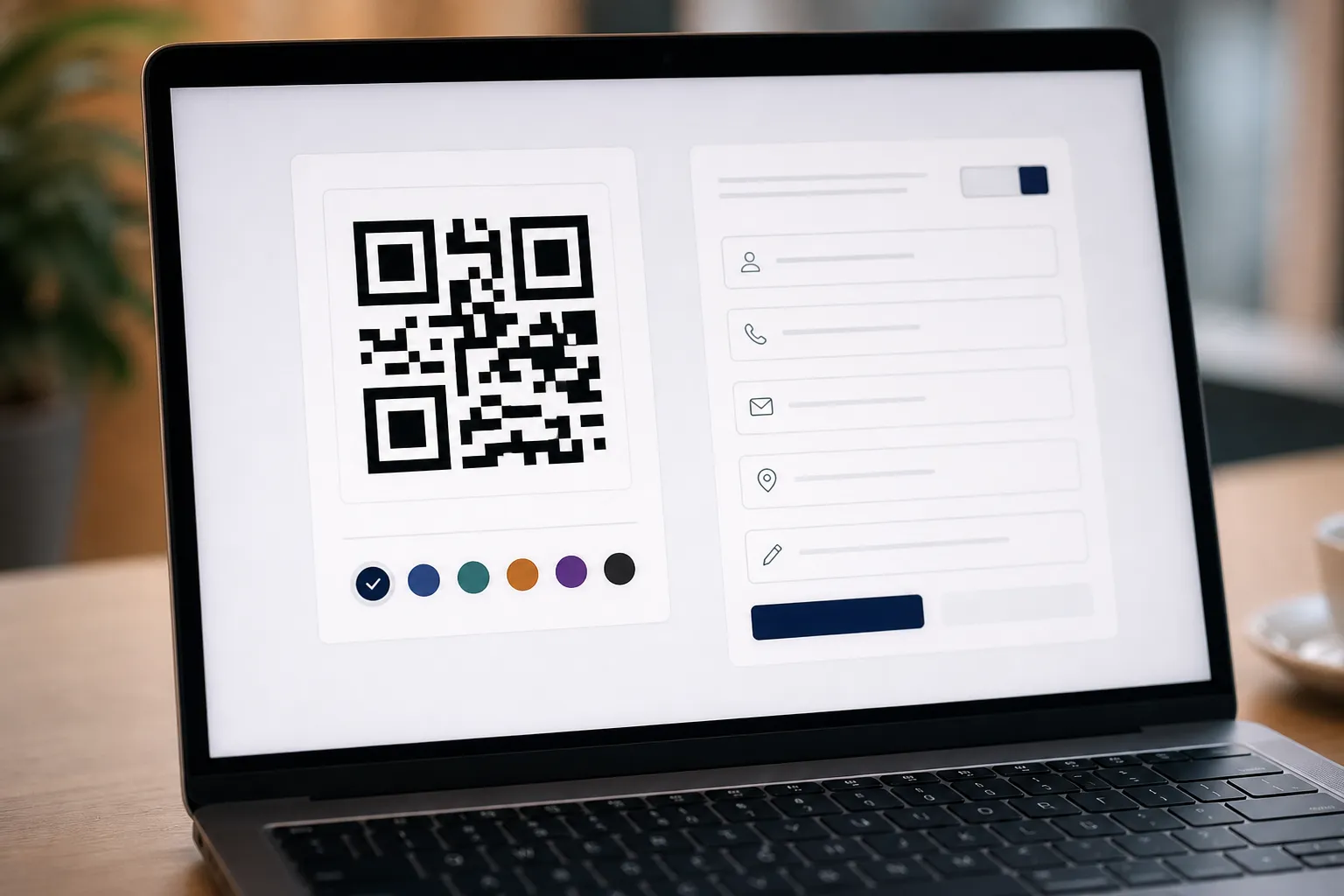
Most free QR generators produce a plain URL dump, not an actual vCard. That distinction matters: a proper contact QR code encodes your details using the vCard 4.0 standard (RFC 6350), so a scanned result opens a native contact card on any smartphone, ready to save in one tap.
Four steps, under five minutes, and you'll have a print-ready file.
What to look for in a free vCard QR generator
Before you generate anything, confirm the tool explicitly supports vCard 3.0 or 4.0 encoding. A URL-based QR code pointing to a contact page is not the same thing; it requires an internet connection and an extra browser step.
The right generator encodes the name, phone number, email, company, job title, website, and address directly into the QR pattern itself. Free-to-start plans cover this core functionality; premium tiers typically access dynamic editing, custom branding, and scan analytics.
How to configure and download your code in high quality
- Select vCard as your QR type
Open your chosen generator and choose the "vCard" or "Contact" option, not the generic "URL" or "Text" type. This ensures the output follows the vCard standard rather than encoding a plain web address. - Fill in every contact field you want saved
Enter your name, phone number, email, company, and website. Leaving fields blank is fine; just prioritize the details your contacts actually need. Avoid abbreviations in your name or title, since these will appear exactly as typed in the saved contact. - Choose static or dynamic output
Static codes are permanent and free. Dynamic codes let you update contact details later without reprinting materials, which is worth the upgrade if your phone number or company might change. - Download SVG for print, PNG for digital
SVG scales without quality loss, making it ideal for business cards and signage. PNG works for email signatures, websites, and digital sharing. Always download at the highest available resolution.
If you are also building a digital presence, you can learn how to handle other code-based tools by checking our guide on how to generate a WiFi QR code for a comparable step-by-step workflow.
Kleap tip: Kleap users can embed a contact QR code directly into any AI-generated website or landing page, turning a static design element into an active lead capture tool. Visitors scan once, save your details instantly, and no follow-up form is needed.
What Most QR Contact Guides Won't Tell You
Most tutorials stop at 'generate, download, print.' That's where the real problems begin. Before you commit to a QR code for saving contact information workflow, there are four things the free-tool guides consistently skip, and at least two of them can quietly cost you money or kill your scan rate entirely.
The hidden limitations of free static QR codes
Static QR codes are permanent by design. Encode your current phone number, job title, or company into a static vCard QR today, and that pattern is locked forever.
Change jobs next quarter? Every printed card, window sticker, or email signature carrying that code becomes instantly obsolete.
You cannot update the destination. You must print again from scratch.
That's the hidden cost free-tool articles never mention: not the generator, but the reprint cycle.
QR code density is the second overlooked factor. The more contact fields you encode (name, phone, email, address, website), the denser the pixel pattern.
Dense patterns fail on low-resolution prints and break entirely when the code is printed smaller than roughly 2 cm. If you are placing a QR code for contacts on a lanyard badge or a small sticker, strip the vCard down to the essentials: name, phone, and one URL.
Fewer fields mean a cleaner scan.
Smarter ways to use contact QR codes that competitors ignore
Here's what actually works in practice: four deployment strategies most guides overlook:
- Storefront window placement: Laminate a QR contact sheet and stick it inside your front window. Walk-in customers in Houston or Chicago can save your number without asking for a card or waiting for staff.
- WhatsApp native share on Android: Open Contacts, tap the QR share option on any saved contact, and send the code directly via WhatsApp. Zero third-party tools, completely free.
- Embed in your website: Placing your vCard QR on an AI-built site created with Kleap turns a passive page into an active networking tool. Visitors scan and save in one motion, with no friction.
- Email signature block: A small QR image in your signature lets recipients save your details on mobile without copying and pasting a single digit.
The vCard 4.0 standard, defined by RFC 6350, supports all of these use cases natively. Build around it deliberately, and a contact QR becomes far more than a digital business card substitute.
Share, Test, and Deploy Your Contact QR the Right Way
Most people generate their contact QR and immediately send it to the printer. This is the wrong move.
A vCard field that renders perfectly on your iPhone can silently drop the job title or website URL on certain Android builds, and you won't know until a prospect tells you three weeks later. Two minutes of cross-device testing can prevent that entirely.

How to verify your QR code works before distributing it
- Scan on both iOS and Android simultaneously
Hand your phone to a colleague with a different OS and scan at the same time. Confirm every field, name, phone, email, company, job title, website, saves correctly to the address book. iOS and Android parse vCard 4.0 fields differently, so gaps show up fast. - Test under varied light conditions
Scan in a bright office, then in a dim restaurant or conference room. If the code hesitates under low light, increase its size or boost the contrast ratio before finalizing. - Verify the saved contact, not just the scan
Open the address book after scanning and confirm the contact appears complete. A successful scan that saves zero fields is a silent failure most people miss entirely.
Where to place your contact QR for maximum scans
Physical placements that consistently perform include business cards, product packaging, trade show banners, and reception desks. For digital placements, embed it as an image in your email signature, add it to your LinkedIn featured section, and link it through a Kleap-built landing page. This gives you a clean, branded destination that works across Instagram bios and social profiles simultaneously.
A Los Angeles agency can equip every consultant with a personalized contact QR with zero IT overhead, each linking to their own Kleap page.
If you use a dynamic QR platform, track scan data. Knowing when and where people save your contact is genuine sales intelligence, not a vanity metric.
Frequently Asked Questions
What information can a contact QR code store?
Quite a lot, actually. A contact QR code built on the vCard format can hold your full name, phone numbers, email addresses, physical address, job title, company name, and website URL.
More advanced implementations also support social media profile links, a profile photo, and custom notes. The practical limit depends on whether you use a static or dynamic format, but day-to-day contact details fit comfortably in any version.
Can someone scan my contact QR without a special app?
No dedicated app is required. Every modern smartphone, whether iOS or Android, can scan a contact QR code directly through the native camera app.
The phone reads the QR, prompts the user to save the contact, and the details land in their address book in seconds. I've personally seen this work effortless across devices released as far back as 2018.
The only edge case is older feature phones, which rarely have a built-in scanner.
What is the difference between a static and a dynamic vCard QR code?
Static QR codes encode your contact data directly into the pattern itself. Once printed, the information is locked.
Change your phone number, and the QR code is in plain terms broken.
Dynamic QR codes point to a hosted URL that delivers your vCard. The visual code never changes, but the underlying data can be updated at any time through a dashboard.
For anyone printing business cards or merchandise, dynamic is the only format worth considering.
How do I update my contact details if I already printed the QR code?
If your QR code is dynamic, updating is straightforward: log into your builder platform, edit the contact fields, and save. Every future scan immediately reflects the new information, with no reprint needed.
Static QR codes offer no such flexibility. The data is baked in permanently, so a change in details means generating and reprinting a new code entirely.
This is exactly why choosing dynamic from the start matters, especially when ordering large print runs. With Kleap's AI builder, dynamic contact pages can be edited and redeployed in moments, without touching a single line of code.
What file format should I use when downloading my QR code for print?
SVG or high-resolution PNG, full stop. SVG is a vector format, meaning it scales to any size, from a business card to a billboard, without losing sharpness.
PNG works well too, provided the export resolution is at least 300 DPI for standard print sizes. Avoid JPEG for QR codes: compression artifacts can distort the pattern and cause scan failures, particularly at smaller sizes.
When in doubt, request SVG from your generator and let the print shop handle the sizing.
Your QR code to save contact is ready.
A QR code that saves your contact in three seconds is not a shortcut; it's the new baseline for anyone serious about first impressions.
Take the next step right now: open Kleap, generate your vCard QR, and point it at a landing page that does the rest of the talking for you.
Kleap allows you to pair that QR code with a full AI-built website or landing page, with no coding, no waiting, and no compromise. Your contact details, your story, your offer: all live and shareable in minutes.
Start free on Kleap and create the digital presence your QR code deserves, since the scan is just the beginning of the conversation.
The people who network best are not the ones with the thickest stack of business cards. They are the ones whose information is always one scan away.