AI invoice generator
List the work. Download a PDF invoice.
- TestedSame prompt, 5 runs on 7 November 2026 (production build): 5 of 5 delivered the one-page PDF invoice, each totalling £1,044.00, median 23 s by Kleap's turn timer. The invoice on this page is an earlier run of the same prompt (6 November 2026, 34 s), total £1,044.00. Times are Kleap's own timer for the AI's turn in our test (one run, or the median where we repeated it), not a promise: yours may take longer, and reading and checking the file comes on top.
- Free to startYour first try usually needs no account; to keep the result, Kleap asks for a free account, with no card. Each file uses Kleap usage, and the free plan's usage refills automatically.
- Using the boxThe box holds a sample job: the number and date, both businesses with their addresses, your VAT number, the items, the VAT rate, the terms and the bank details. Press Create for the PDF, or put your own in their place. Check every amount and tax rate before you send it.
What is an AI invoice generator?
An AI invoice generator turns a plain description of a job into a laid-out invoice. Kleap's AI invoice generator returns a one-page PDF with both parties' details, an invoice number, dates, line items, VAT and a total worked out from your inputs. To change a line or the due date, ask in the same chat: Kleap edits the stored PDF.
An AI invoice generator turns a plain description of a job (who, what, how much, when it is due) into a laid-out invoice. Kleap's AI invoice generator returns it as a PDF with your business details, the client, an invoice number, the issue and due dates, the line items with quantities and prices, the subtotal, the tax and the total. Your VAT number and payment instructions appear on it only when you give them; otherwise Kleap is told to mark them [to fill in]. Create turns the filled-in sample into a real invoice; swap in your details and Kleap asks for anything missing; to change anything, say what is wrong in the same chat and Kleap edits the stored PDF. Kleap works the totals out from your inputs, but it is not accounting software: there is no automatic invoice numbering, no payment tracking and no tax rule check, so read every amount and tax rate before you send it.
An invoice file, not invoicing software
Kleap makes the invoice; you send it. The totals are worked out from your quantities, prices and VAT rate, and the test invoice on this page adds up line by line. There is no automatic numbering, no payment tracking, no reminders and no check of your country's invoice rules: the invoice number, the VAT rate and the payment details are the ones you type.
If you invoice every week and want reminders and paid/unpaid status, use invoicing software. To keep a list of your invoices with totals by client and month, ask the AI spreadsheet generator for an Excel tracker.
Checked on 6 November 2026 by the Kleap product team. Test: “Make a PDF invoice INV-0042 from Studio Nova to Acme Print. (details on the next line)”, a one-page PDF, 34 s by Kleap's turn timer.
Sources
- “Your invoice must include: a unique identification number, your company name, address and contact information, the company name and address of the customer you’re invoicing, a clear description of what you’re charging for, the date the goods or service were provided, the date of the invoice, the amount(s) being charged, VAT amount if applicable, the total amount owed” — GOV.UK — Invoices: what they must include (read )
Measured on
One real run of the prompt in the box above, unchanged: a fresh project, the real Kleap interface, a test account. Every number on this page comes from that run and its delivered file. Times are Kleap's own turn timer, shown under the reply in the chat. One run, not an average.
- Same prompt, 5 runs on 7 November 2026 (production build)
- 5 of 5 delivered a one-page PDF invoice, total £1,044.00 in each (every file opened)
- Median of Kleap's turn timer over those runs
- 23 s
- Kleap's turn timer (the invoice on this page, 6 November 2026)
- 34 s
- Total due, read from the PDF
- £1,044.00
- [to fill in] markers
- 0
See what this prompt creates
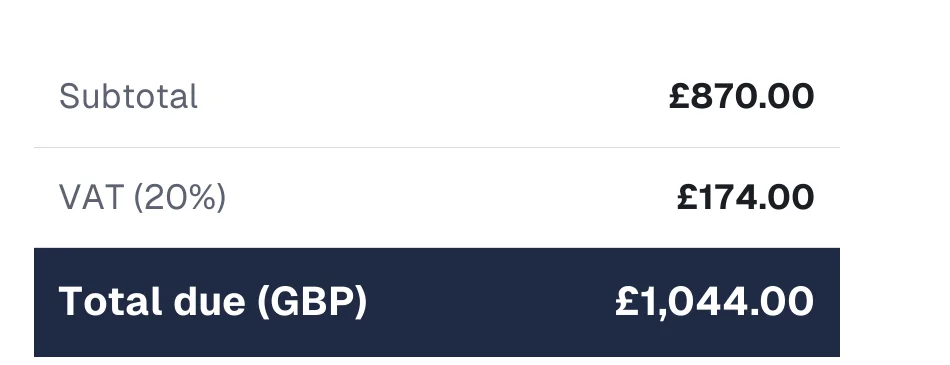
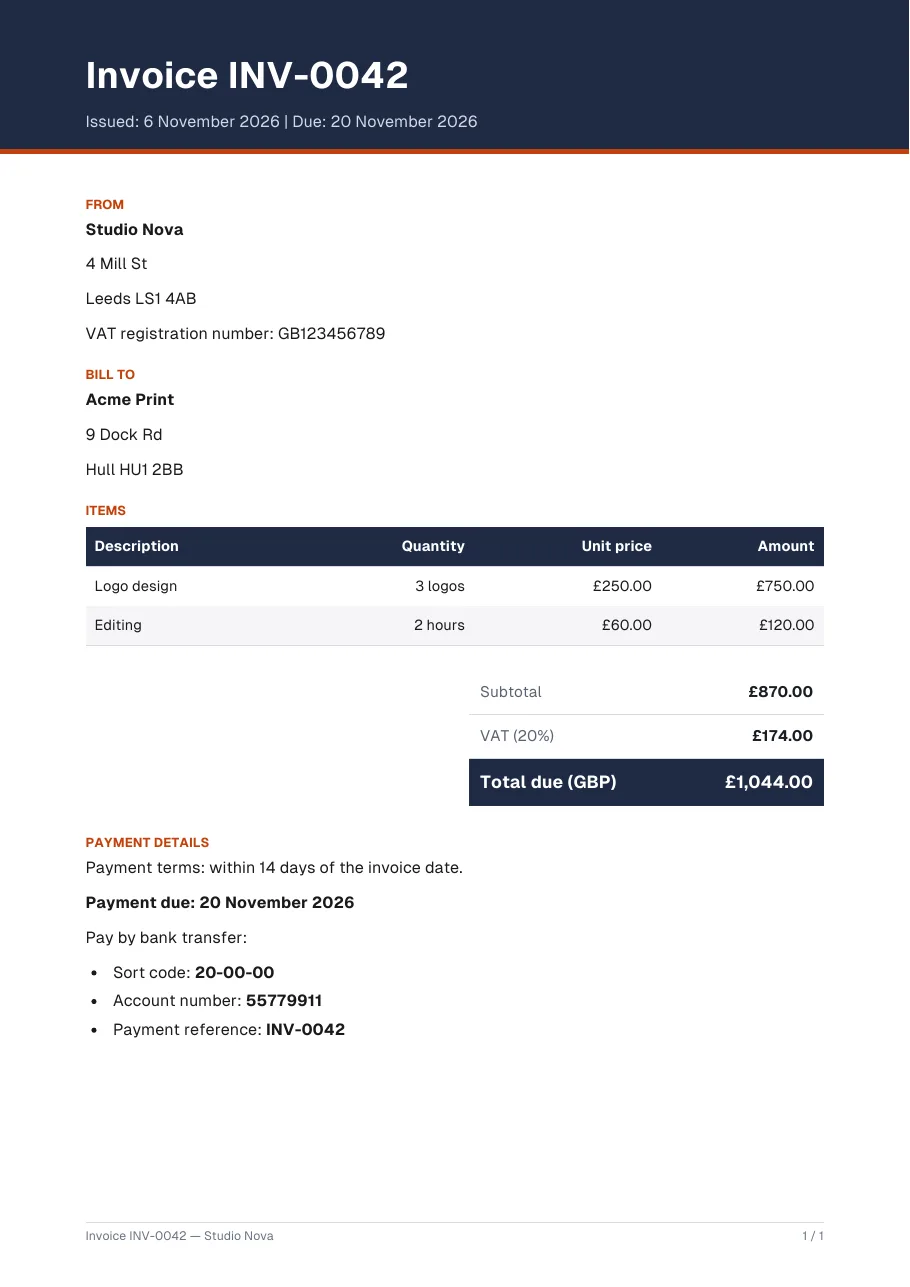
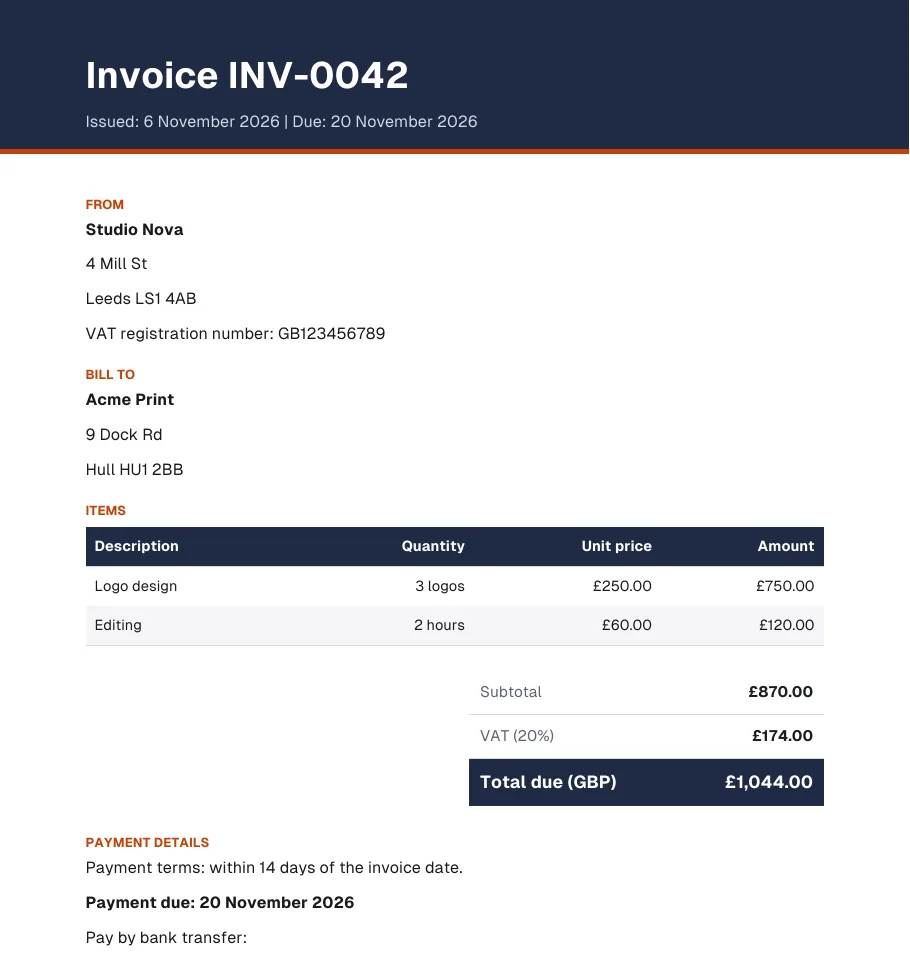
Real output of the prompt in the box above, generated with Kleap on 6 November 2026, rendered from the delivered file. Not a mockup. From the prompt in the box, as written, Kleap returned a one-page PDF invoice in 34 s by Kleap's turn timer: INV-0042 issued 6 November 2026, due 20 November (14 days), from Studio Nova, 4 Mill St, Leeds LS1 4AB, VAT registration GB123456789, to Acme Print, 9 Dock Rd, Hull HU1 2BB. Two lines (logo design, 3 logos at £250.00 = £750.00, editing, 2 hours at £60.00 = £120.00), subtotal £870.00, VAT 20% £174.00, total due £1,044.00, then the payment details: 14 days, bank transfer, sort code 20-00-00, account 55779911, reference INV-0042. Every detail is the prompt's; 0 [to fill in] markers.
What we checked in the delivered file
- 1 page in the PDF (pdfinfo).
- 3 × £250.00 + 2 × £60.00 = £870.00; VAT 20% = £174.00; total £1,044.00: each figure read from the PDF text (pdftotext).
- Due date 20 November 2026 = the invoice date + 14 days.
- VAT registration GB123456789, sort code 20-00-00 and account 55779911 printed as given; 0 [to fill in] markers.
Show the exact prompt
Make a PDF invoice INV-0042 from Studio Nova to Acme Print. Details: dated 6 November 2026; Studio Nova, 4 Mill St, Leeds LS1 4AB, VAT GB123456789; Acme Print, 9 Dock Rd, Hull HU1 2BB; 3 logos at £250, 2 hours of editing at £60; VAT 20%; due in 14 days; pay to sort code 20-00-00, account 55779911.
What happened next
Real follow-up messages sent in the same chat as the example above, on a production build with a test account. Kleap kept the project, so each change was one more message, not a new start. One run each, timed by Kleap's turn timer.
You:
Change the due date to 30 days and add a 10 % discount line.
Kleap: Kleap edited the stored invoice instead of writing it again: due 6 December 2026, 30 days after 6 November, instead of 20 November; under the subtotal of £870.00, a line Discount (10%) −£87.00, then subtotal after discount £783.00, VAT 20% £156.60 and total due £939.60 (it was £1,044.00). The addresses, items and bank details are unchanged. Kleap took the discount before VAT; say so if you meant otherwise.
15 s · same chat · 7 November 2026
Before · Top of page 1 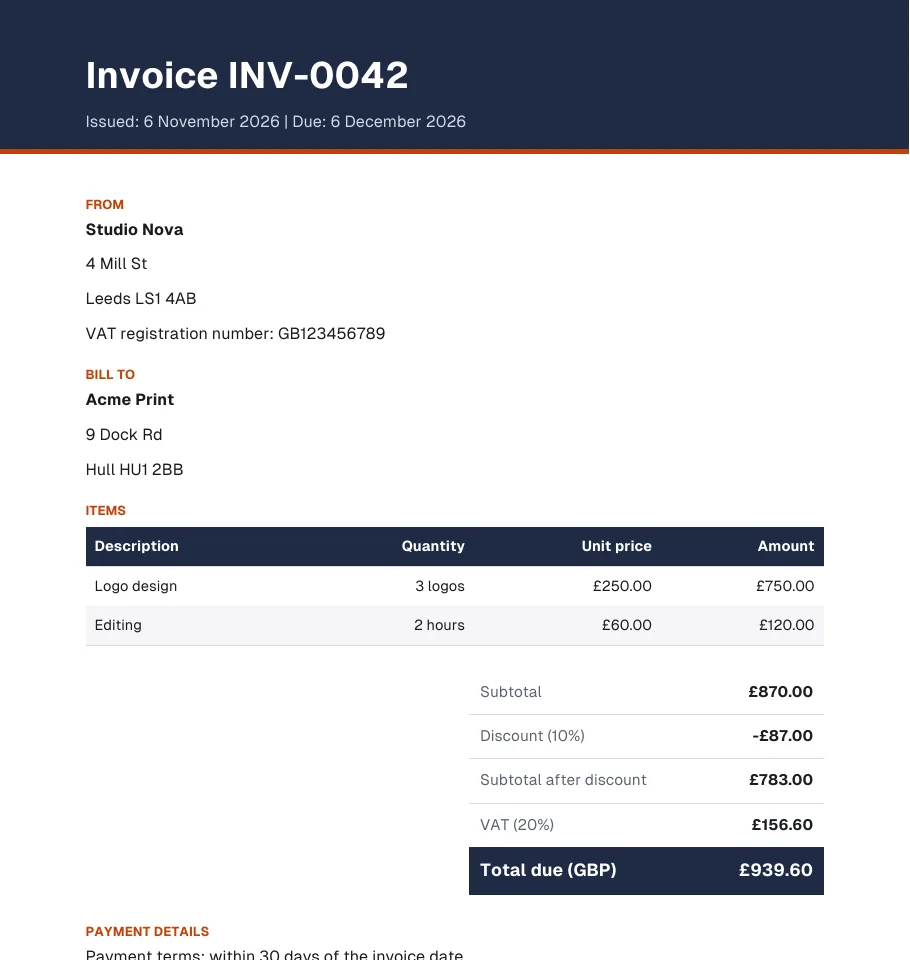
After · Top of page 1
How we tested the AI Invoice Generator, and when to use something else
How this page was tested
- The box prompt gives both businesses, the VAT number, the items, the VAT rate, the terms and the bank details; we sent it as written.
- We read the PDF text back: every line, the subtotal, the VAT and the total.
- We counted the [to fill in] markers left in the file.
Good for
- A one-off invoice for a freelance or trade job
- Getting the subtotal, tax and total worked out for you
- Correcting a line or the due date in the same chat (Kleap edits the stored PDF)
Use something else for
- Numbering sequences, payment tracking or reminders.
- Checking your country's tax rules: verify the rate and wording.
- Just the VAT sum: use the free VAT calculator
Invoices for the work you actually do
Freelance project invoices
Fixed-price or hourly work with clear line items.
Trade and service invoices
Call-out fees, labour and parts, each on its own line.
Retainer and monthly invoices
A recurring amount plus extras for the month.
Invoices with tax
VAT or sales tax at the rate you provide, shown as a separate line.
Quotes and estimates
Ask for the same layout as a quote before the work starts.
From job to invoice in three steps
Enter the details
Your business, the client, the invoice number and date, the line items and how you want to be paid.
Kleap lays out the invoice
It builds the table of items, adds up the subtotal, applies the tax rate you state and shows the total.
Check it and download
Verify the figures, ask for any change, such as a discount or a new due date, and save the PDF.
How Kleap compares
Facts from each tool's own page, read on 9 November 2026 (follow the source link to check). Kleap's row describes what the example above shows.
Which tool for which case
Pick QuickBooks when you also want a Word or Excel copy and later tax and payment features. Pick Template.net when you want to start from one of many invoice templates, by text or voice. Pick LightPDF when you want a quick PDF to share by email or message. Pick Kleap when you describe the job in a sentence and want a designed PDF with the totals computed, then check the number, tax and bank details.
| Tool | What you get | Free path | Best at |
|---|---|---|---|
| Kleap | PDF invoice with line items, tax and total | Your first try usually needs no account; to keep the result, Kleap asks for a free account, with no card. Pro from $25/month (see /pricing). | Asks for your details, then quotes and your website in the same project |
| Google's US top 3 for “ai invoice generator”, read 9 November 2026 | |||
| Template.net AI invoice generatorSource, checked 9 Nov 2026 | Editable invoice from a text or voice prompt | Free, no sign-up | Client details, itemized charges, taxes and due dates; many invoice templates |
| LightPDF AI invoice generatorSource, checked 9 Nov 2026 | Invoice made with AI, downloaded as a PDF | Free online | Share it by email, DM or text |
| QuickBooks invoice generatorSource, checked 9 Nov 2026 | Invoice built online; download as PDF, Word or Excel | Free, no limit on how many you make | Sign up to QuickBooks to calculate taxes and get paid |
| Category leaders (not in this SERP, read 9 November 2026) | |||
| Zoho InvoiceSource, checked 9 Nov 2026 | Invoicing software for small businesses | “100% Free invoicing solution.” | An invoicing account: sign up for free |
Start free. Upgrade when you need more.
Your first try usually needs no account; to keep the result, Kleap asks for a free account, with no card. Files and images use your Kleap usage: free usage refills over time, and paid plans add much more.
Free
- Free usage that refills
- Free account to save your results and find them again
Pro
- Much more usage
- Custom domain for your Kleap websites
A PDF invoice in 34 s in our test, then a median of 23 s over 5 more runs
Invoicing software is often more than a freelancer needs for one job. Kleap gives you the simple version: you list who the invoice is from and to, the items and the payment terms, and you receive a tidy PDF with the totals laid out.
Always check the arithmetic, the tax rate and the legal wording before you send an invoice. Requirements for invoice numbers, VAT and tax details differ by country, so Kleap uses the details you give it and does not provide tax or legal advice. Before the work starts, the AI quotation generator makes the quote for the same job.
Questions, answered.
How do I create an invoice with Kleap?
Write your details, the client and the line items in the box at the top of this page and ask for a PDF. Kleap builds the invoice and shows the download in the chat.
Does it calculate the totals and tax?
It adds up the items and applies the tax rate you state, and shows the subtotal, tax and total. Always check the numbers yourself before sending an invoice.
Is the invoice legally valid?
Kleap uses the details you provide and does not give legal or tax advice. Rules for invoice numbers, tax IDs and required wording differ by country, so check what applies to you.
Can I use my own currency and tax rate?
Yes. State the currency, the tax rate and any payment terms in the request.
Can I change the invoice after it is made?
Yes. Reply with the change, such as a different due date or a discount line, and Kleap edits the stored PDF (due date, lines, totals) in the same chat.
Does Kleap send the invoice to my client?
No. It creates the file for you to download, and you send it yourself.
Can I add my logo?
You can mention your business name and details in the request. If a logo matters to you, ask for a logo in Kleap first and check how it appears on the file.
Get paid faster with a clear invoice.
List the work and download an invoice as a PDF. Check the amounts and the tax rate, then send it yourself.
Written by the Kleap product team. Checked on 9 November 2026 against the generated files and runs shown on this page.